
How do I add an authorized user to my account?
You can add authorized users to your client area account, each with their own login and configurable access level.
Send the invite
Section titled “Send the invite”-
Log in to your client area with the primary account owner’s email address.
-
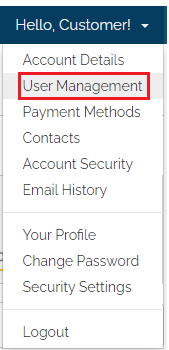
Click your name in the top-right menu and select User Management from the dropdown.
-
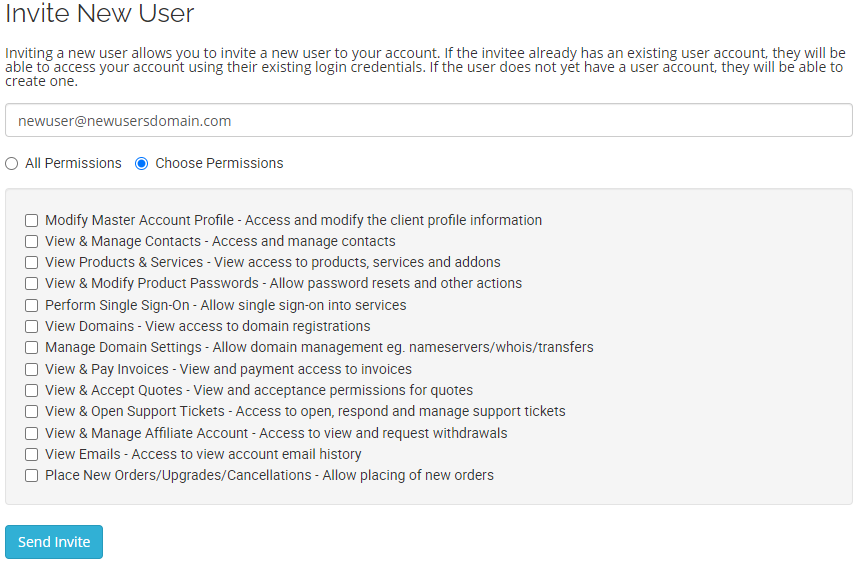
On the User Management page, enter the new user’s email address in the Invite New User form. You can grant All Permissions or use Choose Permissions to restrict their access level. Click Send Invite.
Accept the invite
Section titled “Accept the invite”-
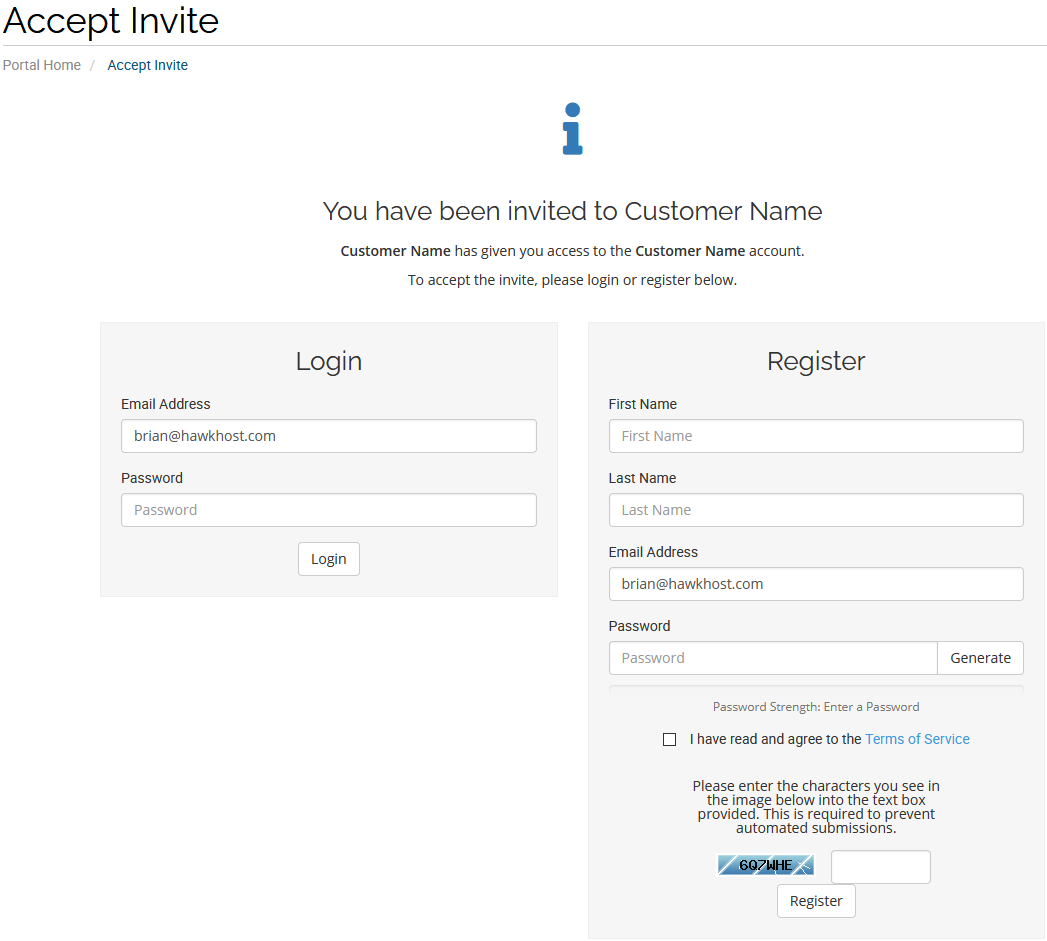
The new user will receive an email with an Accept Invite link. If they already have a Hawk Host account, they can log in with their existing credentials. Otherwise, they can register a new account using the provided form.
-
Once the invite is accepted, you can view and manage the user’s permissions from the User Management page.