
How do I enable, disable, or flag LiteSpeed Cache for WordPress?
All shared, cloud web hosting, semi-dedicated, and reseller plans support the LiteSpeed Cache for WordPress (LSCWP) plugin at no additional cost. This plugin drastically improves performance of WordPress sites. Our systems automatically attempt to optimize your sites with caching, but you can also manually manage it.
Enabling LiteSpeed Cache
Section titled “Enabling LiteSpeed Cache”-
Log in to cPanel and search for LiteSpeed Web Cache Manager:

-
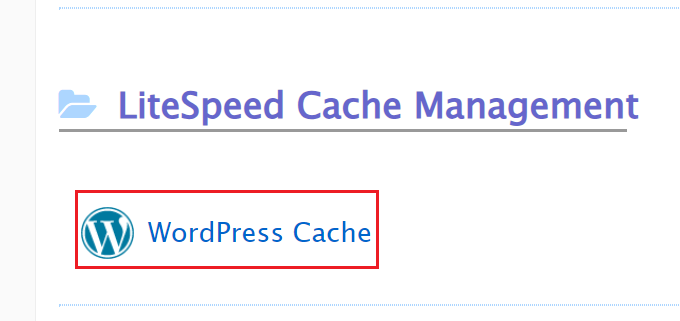
Select WordPress Cache under the LiteSpeed Cache Management menu:
-
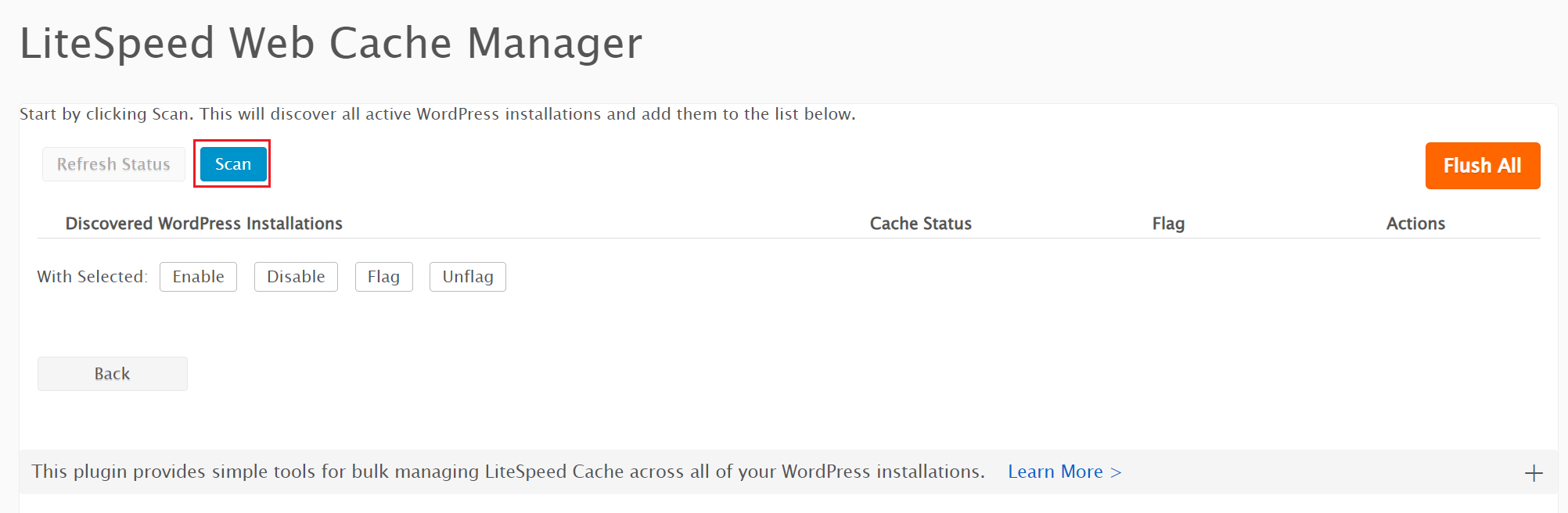
Click Scan to detect all WordPress installations on your account:
-
Under Discovered WordPress Installations, click Enable next to the installation you want to cache:

-
The Cache Status will change from “Disabled” to “Enabled”:

Disabling LiteSpeed Cache
Section titled “Disabling LiteSpeed Cache”-
Log in to cPanel and search for LiteSpeed Web Cache Manager:

-
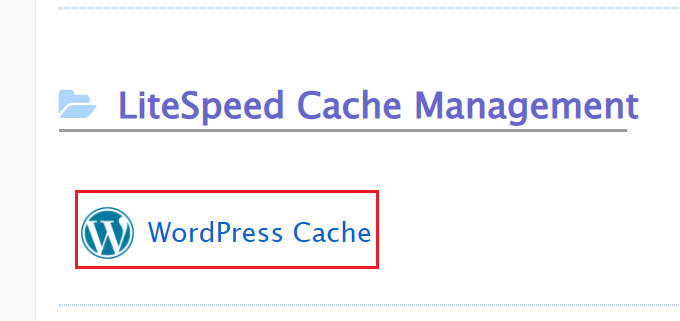
Select WordPress Cache under the LiteSpeed Cache Management menu:
-
Click Disable next to the installation under the Actions menu:

-
The Cache Status will change from “Enabled” to “Disabled”:

Flagging (blocking) LiteSpeed Cache
Section titled “Flagging (blocking) LiteSpeed Cache”Flagging prevents the system from automatically enabling LiteSpeed Cache on a WordPress installation in the future.
From cPanel
Section titled “From cPanel”-
Log in to cPanel and search for LiteSpeed Web Cache Manager:

-
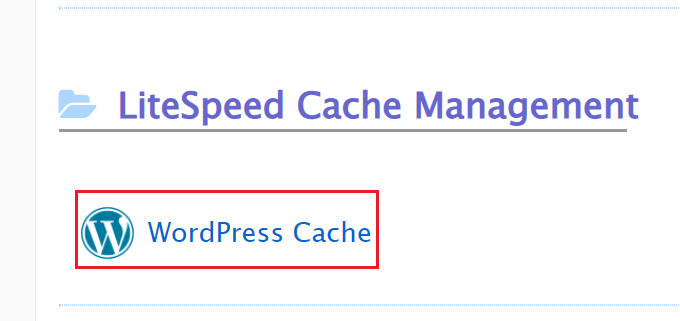
Select WordPress Cache under the LiteSpeed Cache Management menu:
-
Make sure the Cache Status is Disabled for the installation you want to flag.
-
Click Flag under the Actions menu:

-
A flag icon will appear. This installation will be excluded from future automatic LiteSpeed Cache installations until the flag is removed:

Manually through FTP, File Manager, or SSH
Section titled “Manually through FTP, File Manager, or SSH”For purposes of this guide, we will be showing instructions specifically using the File Manager in cPanel. However, the solution is the same regardless of how you access your account, a .litespeed_flag file must exist in the WordPress installation document root.
-
Log in to cPanel and access your File Manager
-
From the File Manager, navigate to your WordPress installation’s directory. If you cannot find your website’s document root, reference the
Domainsinterface in cPanel. For example, if your WordPress installation is on your primary domain, double-click inside the File Manager to navigate topublic_html -
From the File Manager top-right interface, click Settings
-
From the Preferences pop-up, toggle the radio checkbox for
Show Hidden Files (dotfiles). Click Save: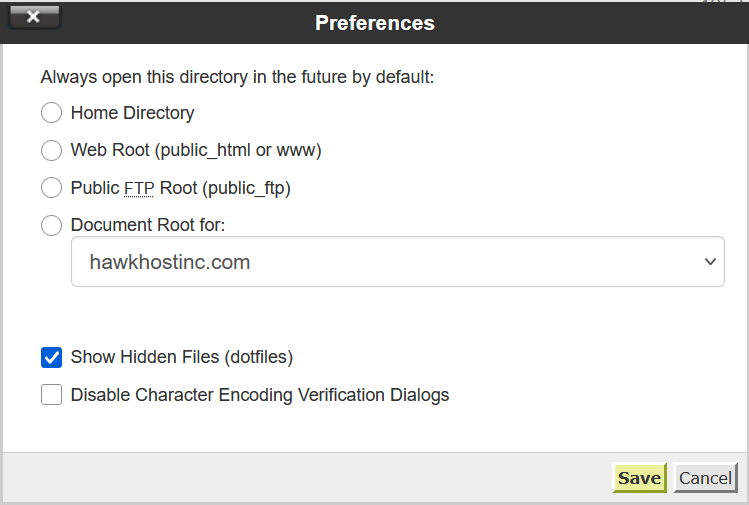
-
Once dotfiles are enabled, from the File Manager menu navigation, click +File
-
From the New File pop-up, enter the file name
.litespeed_flag. Ensure the file is being created in your WordPress installation’s document root directory. Click Create New File: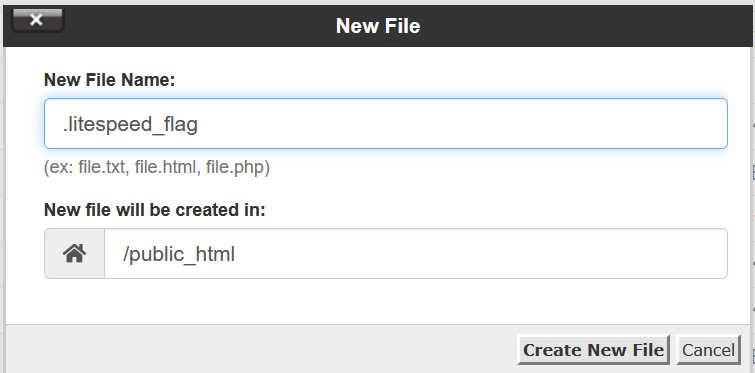
-
Your File Manager should now show a
.litespeed_flagfile. -
LiteSpeed cache will no longer be automatically installed on this installation.