
How to create new domains, addon domains, parked domains, and subdomains
All shared, semi-dedicated, and reseller web hosting plans allow you to host an unlimited number of domains and subdomains. Domains can be added as addon domains, aliases (parked domains), or subdomains through cPanel’s Domains interface.
Creating addon domains
Section titled “Creating addon domains”An addon domain is an additional domain hosted under your account with its own separate document root, content, and email accounts.
-
Log in to cPanel and search for Domains.

-
Click Create A New Domain.

-
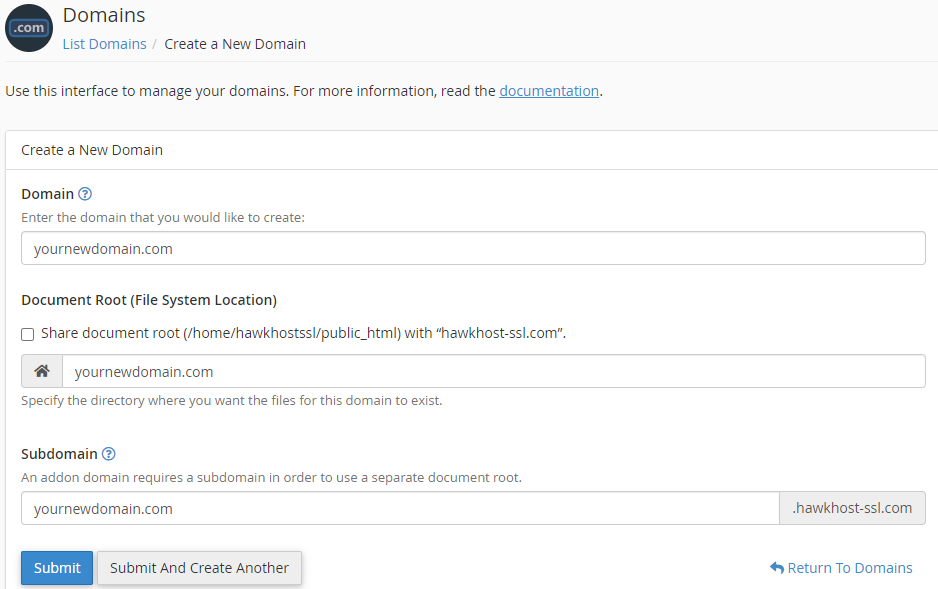
Enter your domain name in the Domain field.
-
Uncheck the Share document root checkbox so the new domain gets its own directory. If you leave it checked, the new domain will serve the same content as your primary domain.
-
Click Submit to create the domain.
-
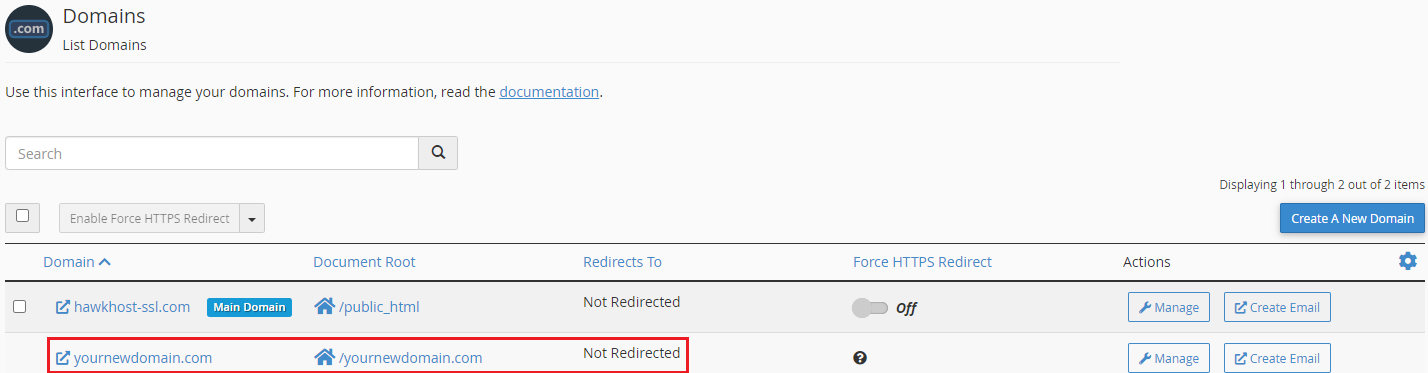
It can take up to 5 minutes for the new domain to be fully created. Once complete, it will appear in the Domains list.
Creating aliases (parked domains)
Section titled “Creating aliases (parked domains)”A domain alias (parked domain) makes your website accessible from an additional domain name. For example, you can make www.example.net display the same content as www.example.com.
-
Log in to cPanel and navigate to the Domains interface.
-
Click Create A New Domain.

-
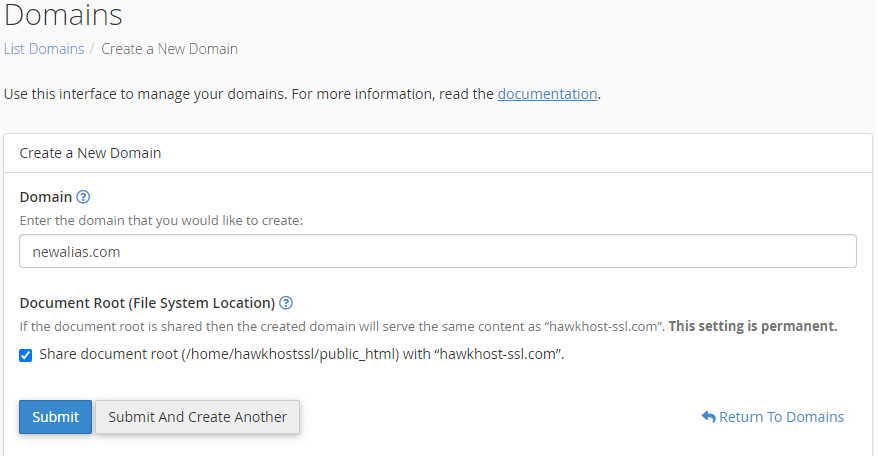
Enter your alias domain in the Domain field.
-
Leave the Share document root checkbox enabled so the alias serves the same content as your primary domain.
-
Click Submit to create the alias.
Creating subdomains
Section titled “Creating subdomains”A subdomain is a subsection of your website accessible via a prefix on your domain (e.g., blog.example.com). Subdomains can point to their own directory with unique content or share the primary domain’s document root.
-
Log in to cPanel and navigate to the Domains interface.
-
Click Create A New Domain.
-
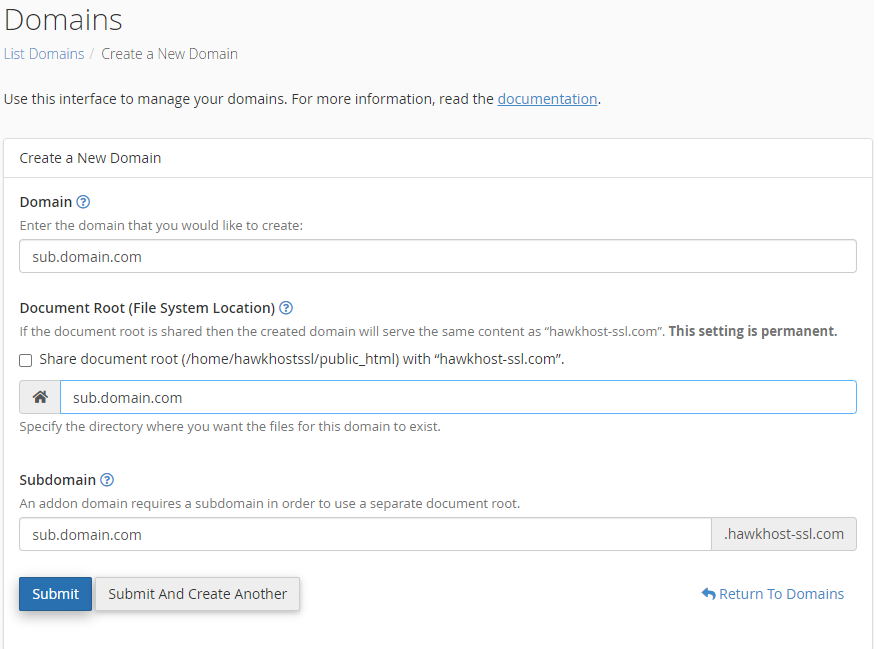
Enter the full subdomain (e.g.,
blog.example.com) in the Domain field. -
To give the subdomain its own content directory, uncheck the Share document root checkbox and specify the directory path. To have it serve the same content as the primary domain, leave the checkbox enabled.
-
Click Submit to create the subdomain.