
How do I upload my files with FTP?
To upload content to your site you need an FTP client. We recommend WinSCP, a free and easy-to-use client available at winscp.net. Other popular options include FileZilla and Cyberduck.
Your FTP credentials are included in the New Account Information email sent when your hosting account was created. Keep that email handy for the steps below.
Connecting with WinSCP
Section titled “Connecting with WinSCP”-
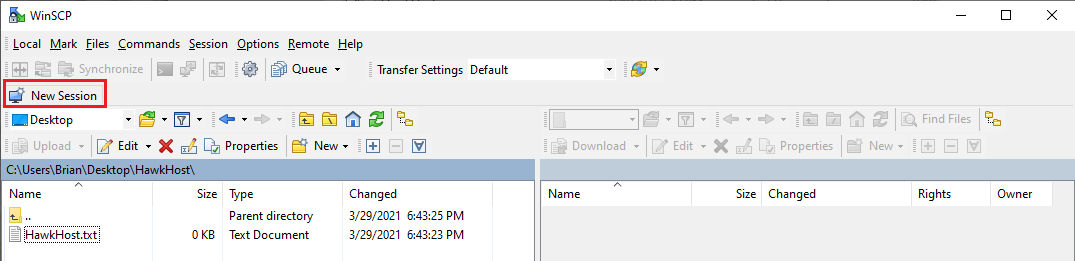
Install and open WinSCP, then click New Session in the top left.
-
Enter your connection details:
Setting Value File Protocol FTP Host name Your domain name (or temporary IP if DNS hasn’t propagated) Port number 21User name Your cPanel username Password Your cPanel password 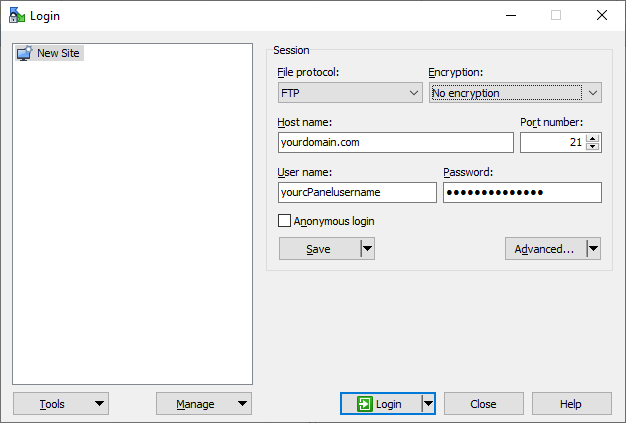
-
Click Login.
-
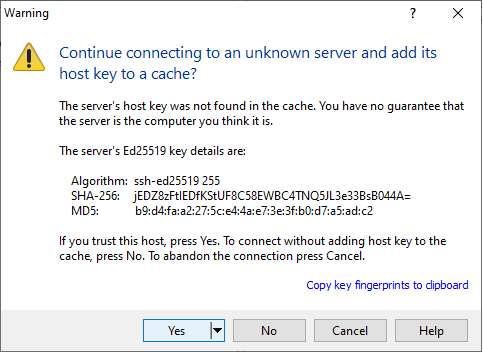
If prompted to accept the server’s certificate on first connection, it is safe to accept.
Uploading files
Section titled “Uploading files”-
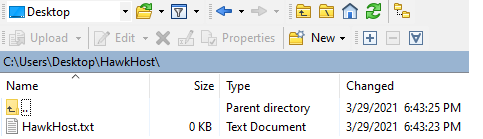
In the left pane (local), navigate to the folder on your computer containing the files you want to upload.
-
In the right pane (remote), navigate to the
public_htmldirectory — this is your website’s document root.
-
Select the file(s) in the left pane and click Upload.

-
Once the upload completes, you’ll see the files listed in the
public_htmldirectory on the remote side.
If you experience any connection issues, open a support ticket and include any error messages you’re receiving.