
How do I enable and manage Redis on my hosting account?
All shared, cloud web hosting, semi-dedicated, and reseller hosting plans include a free Redis instance. Redis is enabled through cPanel’s Server Application Manager.
Enabling Redis
Section titled “Enabling Redis”-
Log in to cPanel and search for Server Application Manager.
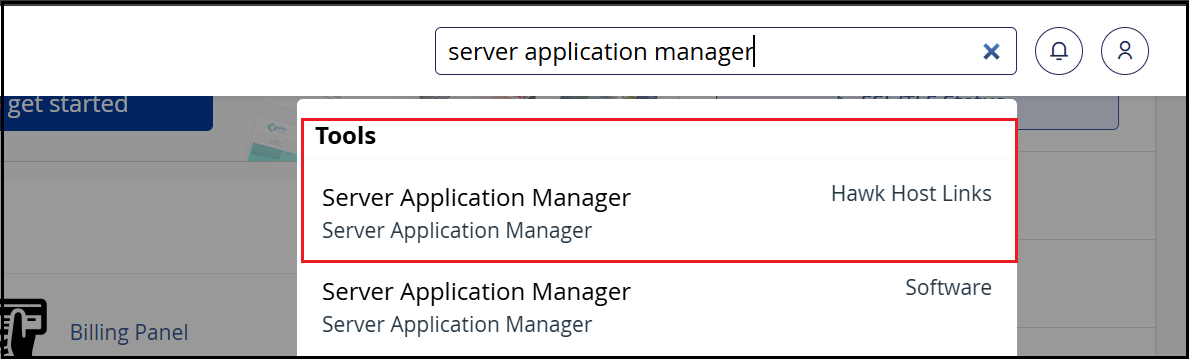
-
Find Redis in the list and click Enable under the Actions column.

-
It can take up to 5 minutes for your Redis instance to start. Refresh the page until the status changes to Online.
-
Once online, your Redis socket path will be displayed. Use this socket path when configuring your application.

Setting Memory Limit
Section titled “Setting Memory Limit”-
Log in to cPanel and search for Server Application Manager.
-
Find Redis in the list and under the Max Memory column, enter the amount of memory you want to allocate to Redis and click Set.

-
It can take up to 5 minutes for your Redis instance to restart with the new defined memory limit.
Viewing Redis Stats
Section titled “Viewing Redis Stats”-
Log in to cPanel and search for Server Application Manager.
-
Find Redis in the list and under Actions column, click Stats.

Our redis stats shows the output of the redis-cli INFO command.
Using Redis with your application
Section titled “Using Redis with your application”When configuring your CMS or application to use Redis, use the Unix socket path shown in the Server Application Manager — not localhost or 127.0.0.1. For WordPress with LiteSpeed Cache, see Configuring Redis or Memcached socket with LSCache for WordPress.
If you have any issues starting Redis or configuring your application, contact our support team.