How do I create a PTR / rDNS record for my cloud vps IP address?
Follow the steps below to set a PTR/rDNS entry on the IP address of your cloud vps. Allow up to 2 hours for DNS propagation after setting the record.
Navigate to the network settings
Section titled “Navigate to the network settings”-
Log in to your client area and navigate to Services > My Services.
-
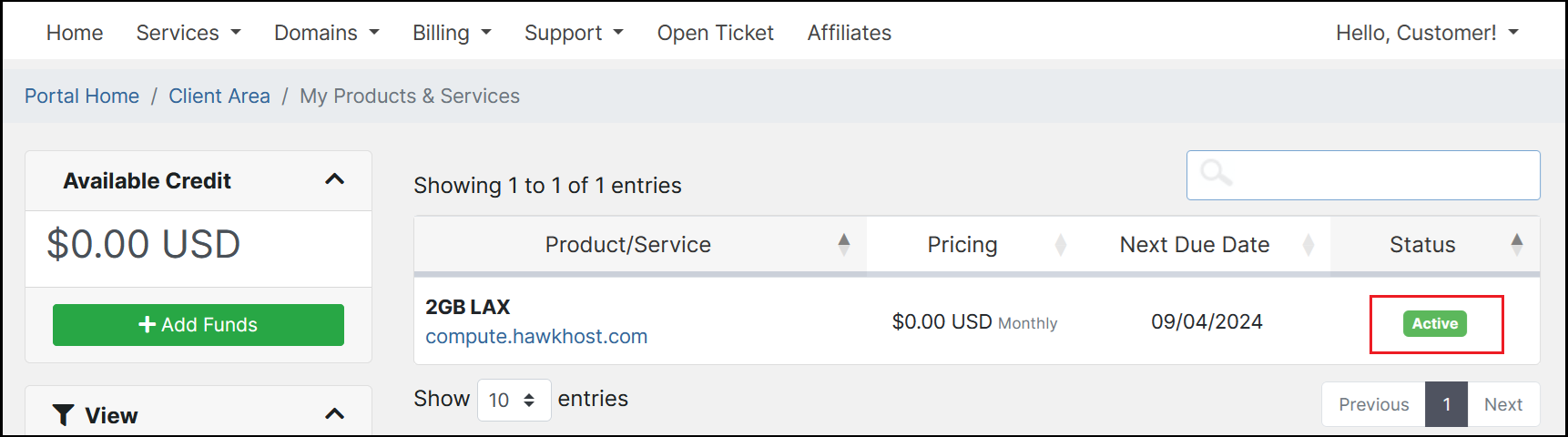
Locate the cloud vps that needs a PTR/rDNS record and click the green Active button:
-
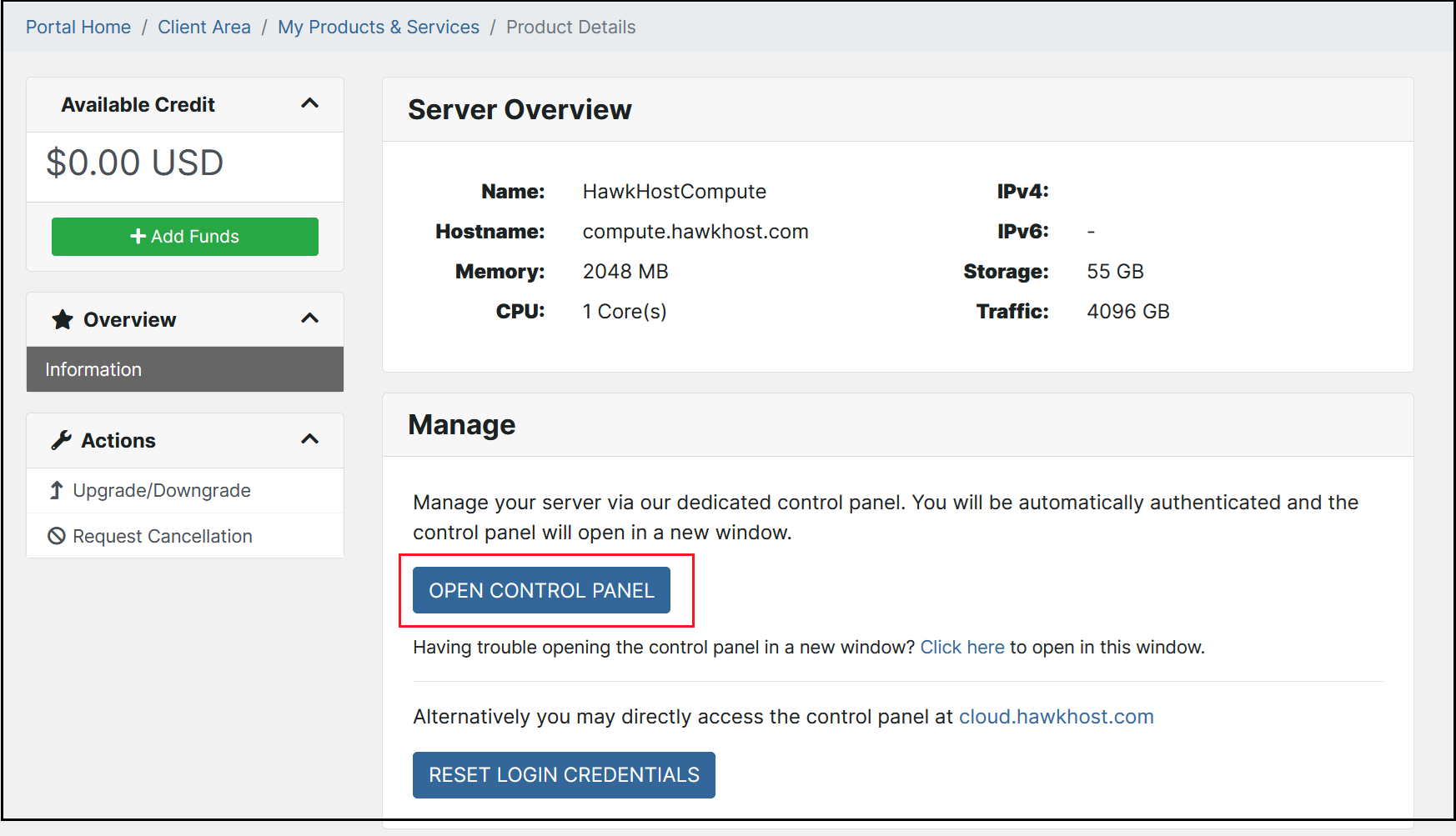
On the Server Overview page, click Open Control Panel:
-
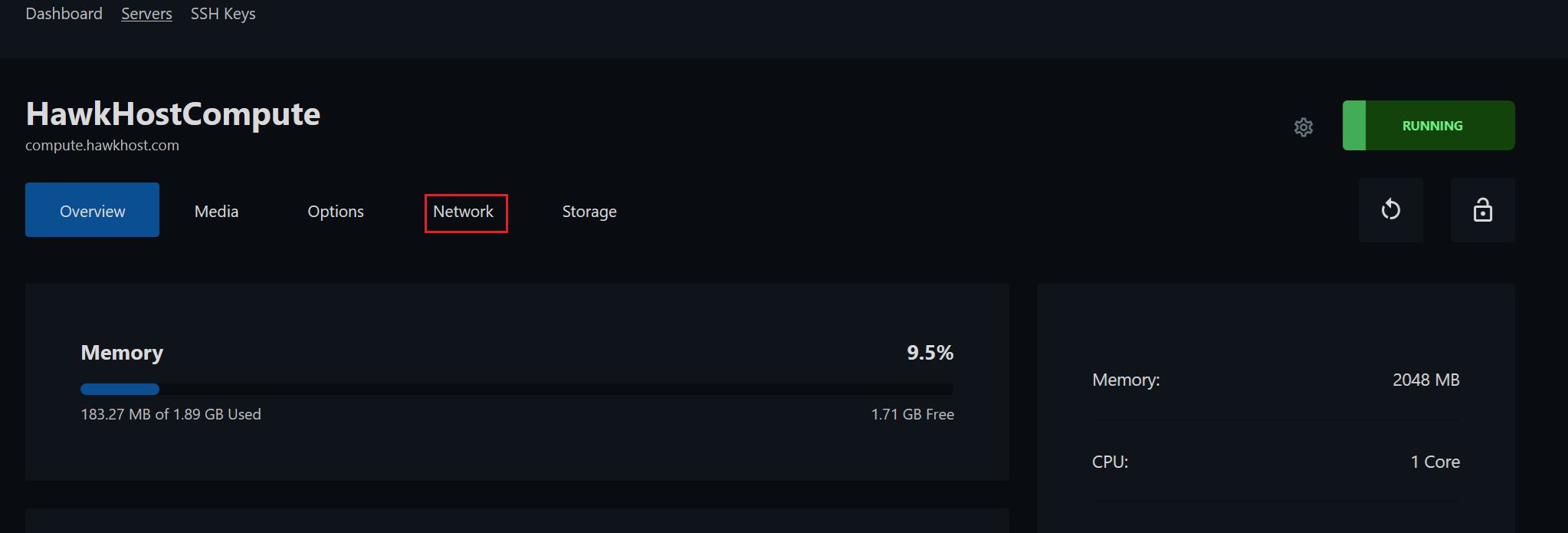
From your cloud.hawkhost.com control panel, click the Network tab:
Set the PTR record
Section titled “Set the PTR record”-
Scroll down to the IPv4 Addresses section and click the Reverse DNS button:

-
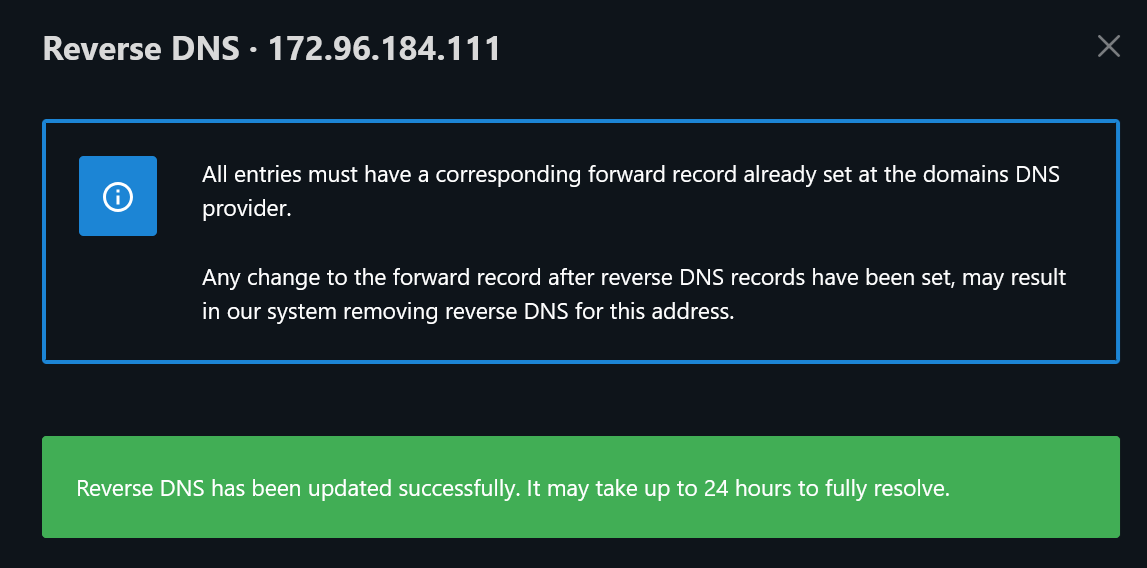
Enter your desired PTR/rDNS record. A valid DNS A record must exist that matches the PTR entry. For example, to set your PTR record to
compute.yourdomain.com, there must be an A record forcompute.yourdomain.compointing to your compute IP. Without a matching A record, you’ll see an error: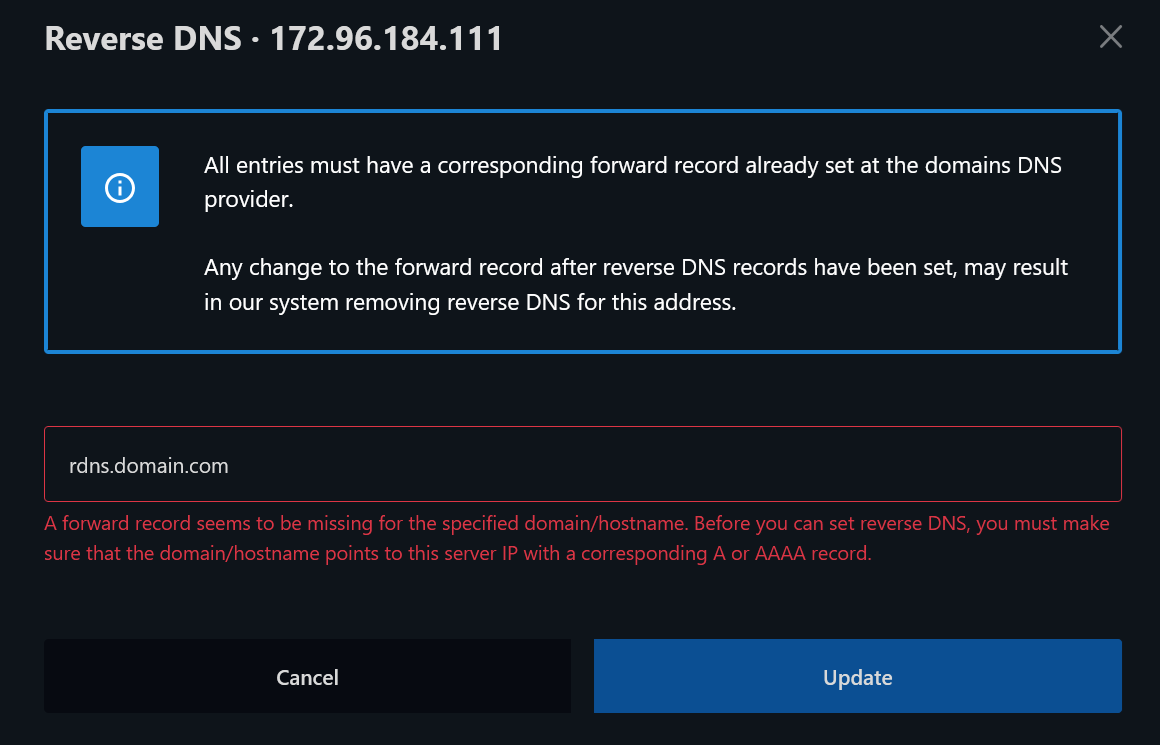
-
If a matching A record exists, you’ll see a success message: