
Using PHP Selector to change your PHP version, modify extensions
All shared web hosting, semi-dedicated, and reseller hosting plans have full PHP control through the PHP Selector interface in cPanel.
Changing PHP versions
Section titled “Changing PHP versions”-
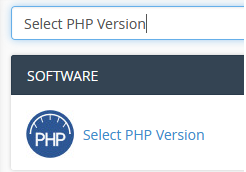
Log in to cPanel and search for Select PHP Version:
-
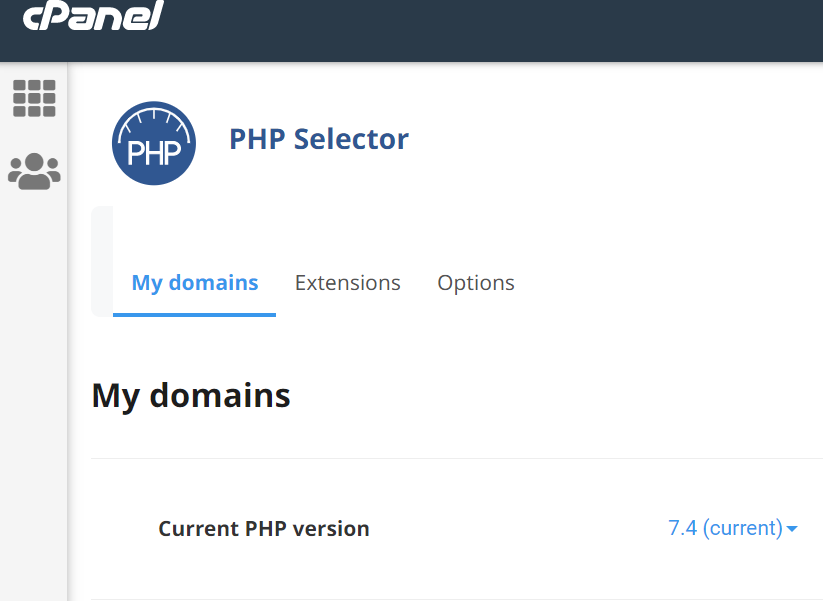
Select the My domains menu:
-
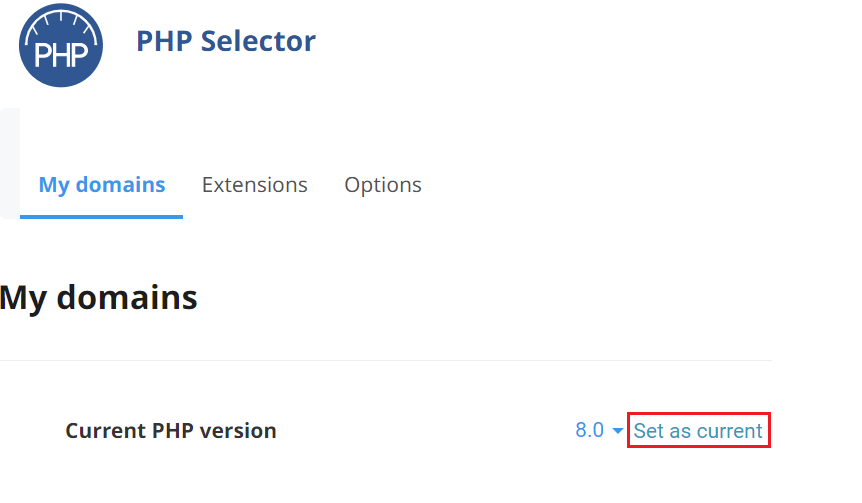
Use the dropdown to select your new PHP version and click Set as Current:
Enabling or disabling PHP extensions
Section titled “Enabling or disabling PHP extensions”-
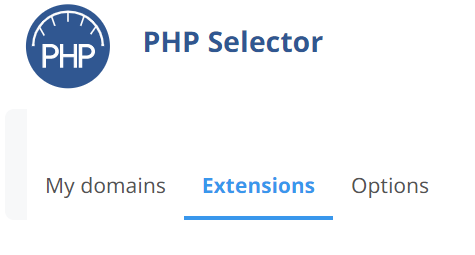
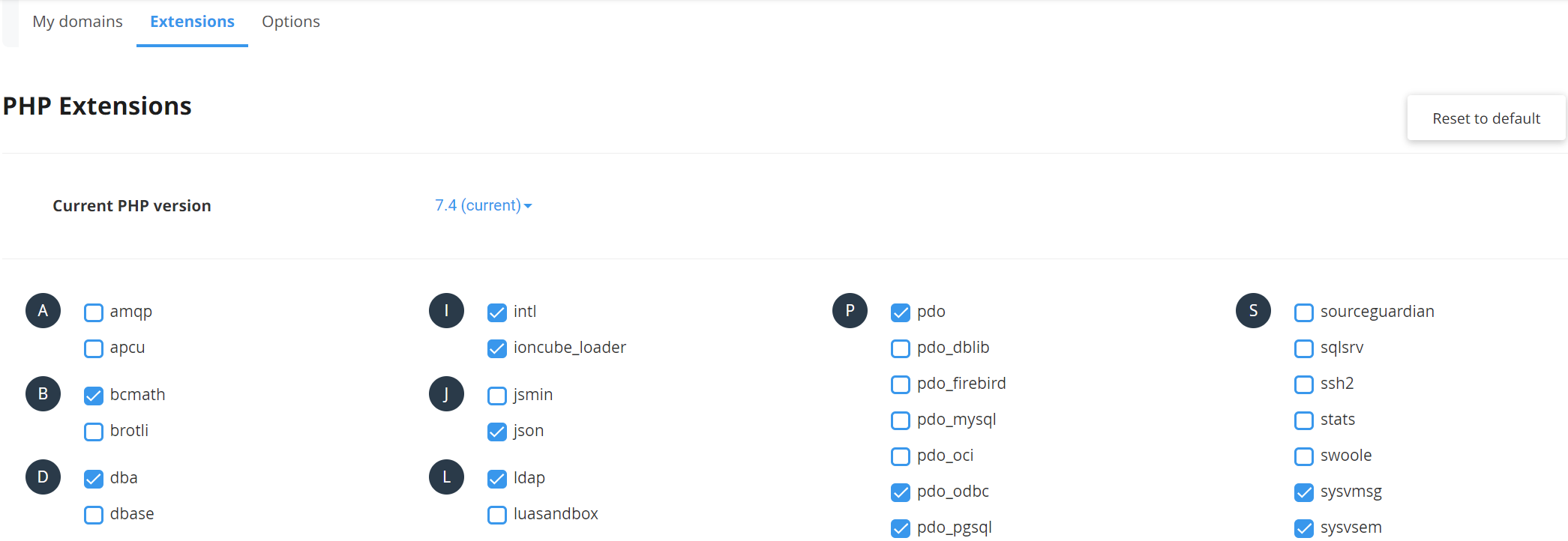
From the Select PHP Version interface, select the Extensions menu:
-
Use the checkbox next to each extension to enable or disable as needed:
Adjusting PHP settings
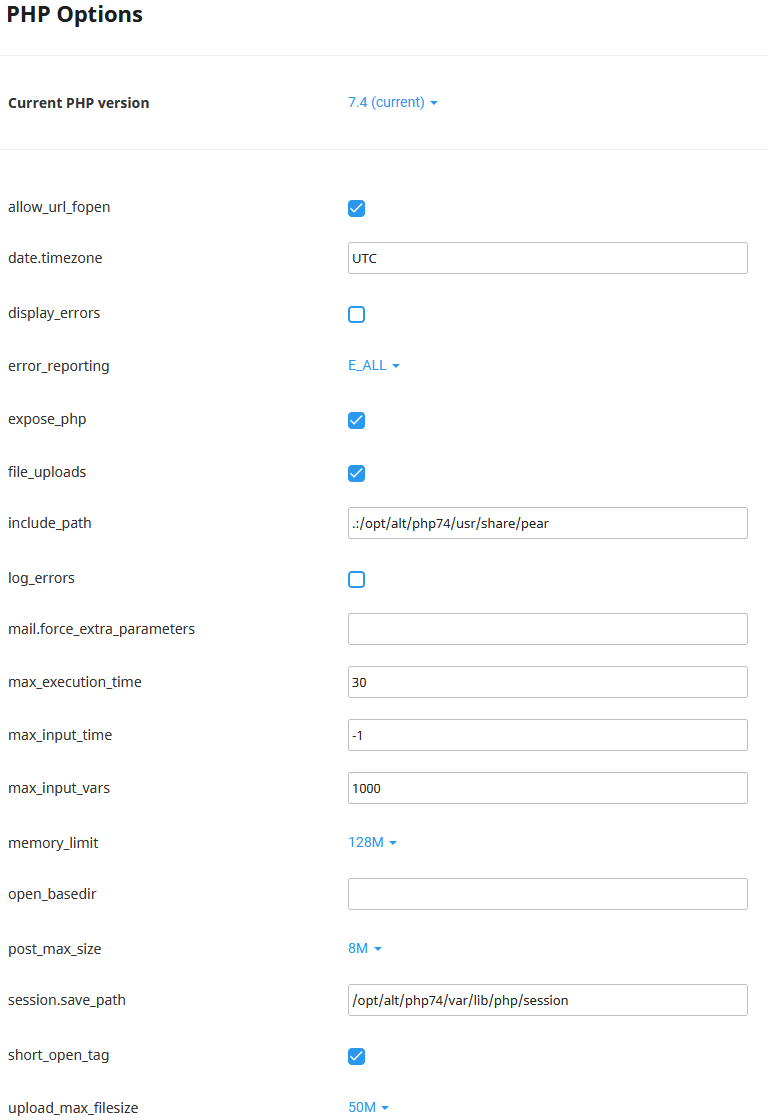
Section titled “Adjusting PHP settings”Common PHP settings include:
- max_execution_time — How long a PHP script can run before timing out
- max_input_vars — Number of GET/POST variables accepted
- memory_limit — Maximum RAM a single PHP process can use
- upload_max_filesize — Maximum size for file uploads processed through PHP
-
From the Select PHP Version interface, select the Options menu:

-
Use the dropdowns and fields to adjust settings as needed:
-
Changes are saved automatically — a confirmation dialog appears in the top right:

PHP path for cron jobs
Section titled “PHP path for cron jobs”The correct path for PHP in cron jobs and scripts is: /usr/local/bin/php