
Adding or editing your DNS zone records (A/AAAA/CNAME/DMARC/MX/TXT)
Any domain hosted through Hawk Host that uses Hawk Host’s nameservers (ns1.hawkhost.com, ns2.hawkhost.com, ns3.hawkhost.com) has full DNS control through the Zone Editor in cPanel. You can use this interface to add or edit A, AAAA, CAA, CNAME, DMARC, MX, SRV, and TXT records.
Editing existing DNS records
Section titled “Editing existing DNS records”-
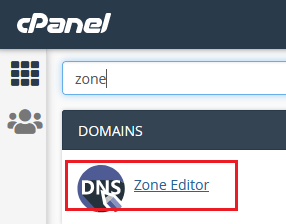
Log in to cPanel and search for Zone Editor:
-
A list of all domains on your account will be displayed.
-
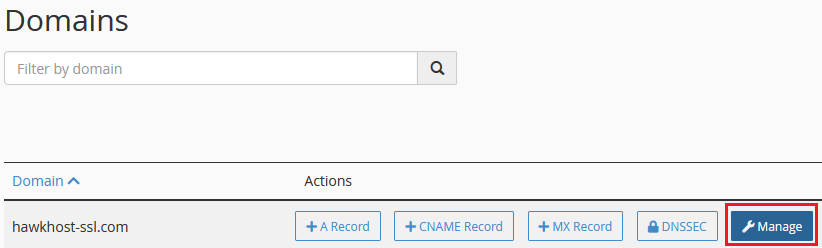
Locate your domain and click the Manage button to the right:
-
All existing DNS records will be listed. Click the Edit button next to any record to modify its values.
Adding an A record
Section titled “Adding an A record”-
Log in to cPanel and search for Zone Editor:
-
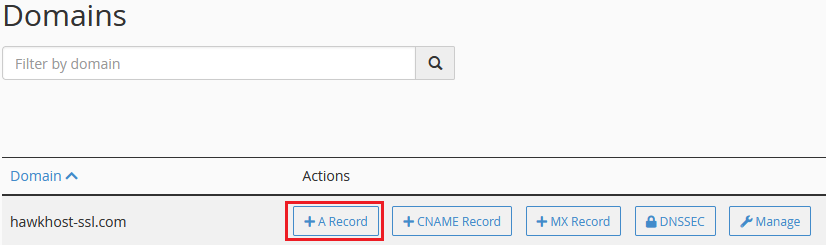
Locate your domain and click the +A Record button:
-
Enter the hostname and IP address. For example, to point
blog.yourdomain.comto1.2.3.4: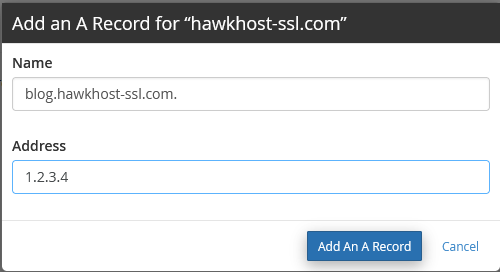
-
Click Add An A Record to save.
Adding a CNAME record
Section titled “Adding a CNAME record”-
Log in to cPanel and search for Zone Editor:
-
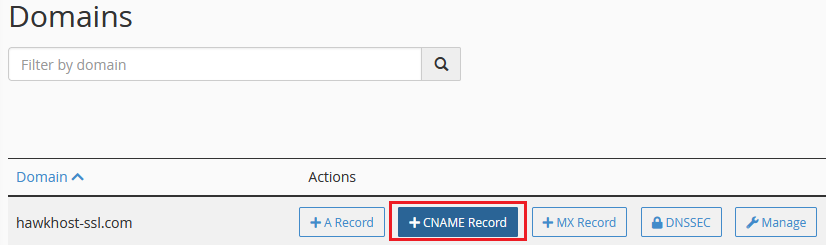
Locate your domain and click the +CNAME Record button:
-
Enter the hostname and destination. For example, to point
blog.yourdomain.comtoyourotherdomain.com: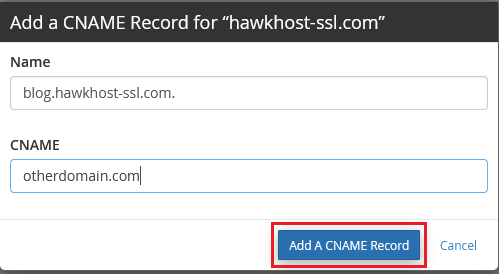
-
Click Add A CNAME Record to save.
Adding an MX record
Section titled “Adding an MX record”-
Log in to cPanel and search for Zone Editor:
-
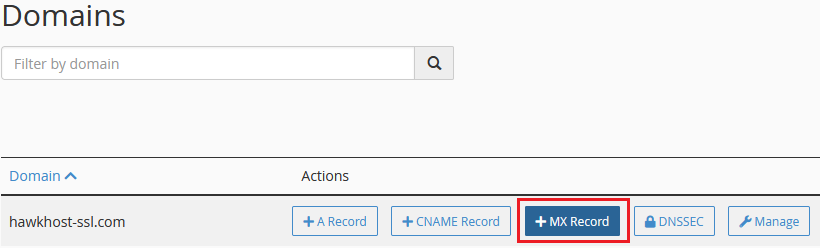
Locate your domain and click the +MX Record button:
-
Enter the Priority (0 is highest priority) and Destination (your mail server). For example, priority
0routing throughyourdomain.com: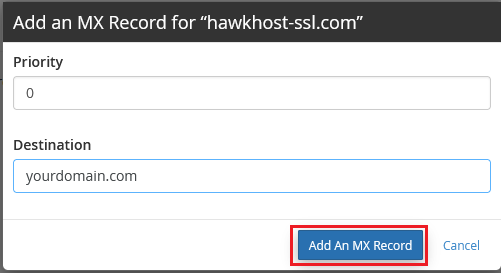
-
Click Add An MX Record to save.
Adding a DMARC record
Section titled “Adding a DMARC record”Refer to How do I create DMARC entries for my domain names? for a guide on creating DMARC records.
Adding other record types (AAAA, CAA, SRV, TXT)
Section titled “Adding other record types (AAAA, CAA, SRV, TXT)”-
Log in to cPanel and search for Zone Editor:
-
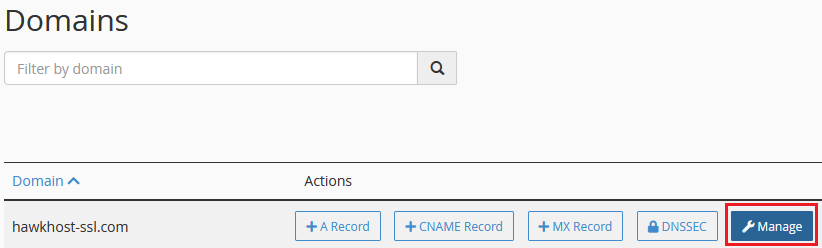
Locate your domain and click the Manage button:
-
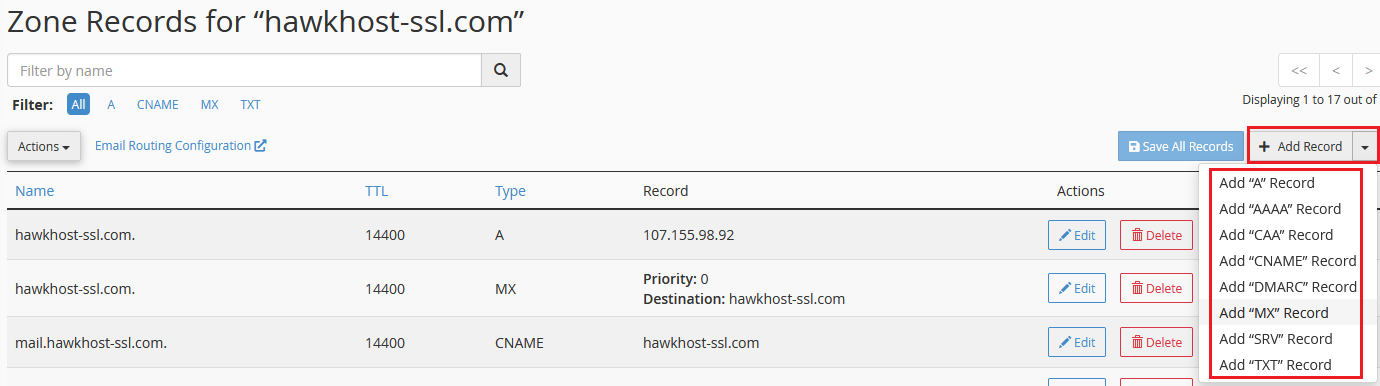
Click the dropdown arrow next to + Add Record and select the record type you need:
-
Follow the prompts to complete adding your new record.