
How do I generate a CSR / certificate signing request?
You can easily generate a CSR (Certificate Signing Request) for an SSL certificate through the SSL/TLS manager in cPanel. The generated CSR can be used for certificates purchased from Hawk Host or any other third-party CA (certificate authority).
Step 1: Open the SSL/TLS Manager
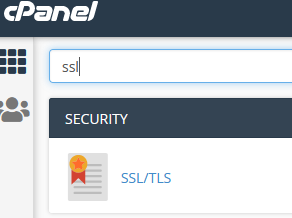
Section titled “Step 1: Open the SSL/TLS Manager”Log in to cPanel for the account you wish to generate the CSR for. Once logged in, type SSL into the search bar and select the SSL/TLS interface.
Step 2: Generate a Private Key
Section titled “Step 2: Generate a Private Key”Before you can generate a CSR, you must generate a private key for the domain. Select the option to Generate, view, upload or delete your private keys under the Private Keys (KEY) section.

Your key size should be either 2,048 or 4,096 bits. For the Description, enter the domain name that will use this SSL certificate.
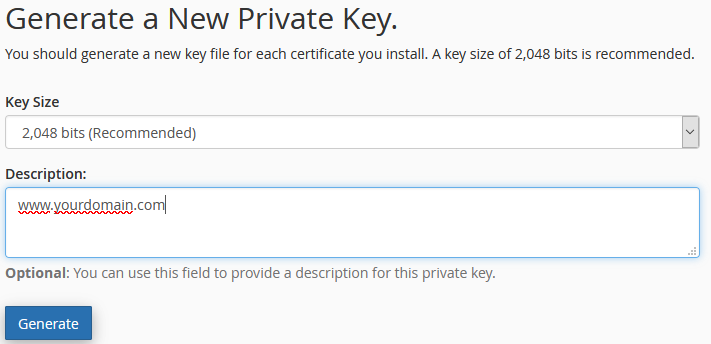
Once generated, you will be redirected to a page displaying your private key information. Scroll to the bottom and click Return to SSL Manager.
Step 3: Generate the CSR
Section titled “Step 3: Generate the CSR”Now that you have a private key generated for your domain, you can generate a Certificate Signing Request. From the SSL/TLS manager page in cPanel, select Generate, view, or delete SSL certificate signing requests under the Certificate Signing Request (CSR) section.

Step 4: Select Your Key
Section titled “Step 4: Select Your Key”On the CSR generation page, select the key you generated in Step 2 from the Key dropdown.

Step 5: Enter Domain Information
Section titled “Step 5: Enter Domain Information”In the Domains field, enter the domain name you will be using for this certificate.

Step 6: Complete and Generate
Section titled “Step 6: Complete and Generate”Fill in the remaining fields and provide the required information. Only fields with an asterisk (*) are required — the rest are optional. Once the fields are completed, click Generate to create your CSR.
Step 7: Copy Your CSR
Section titled “Step 7: Copy Your CSR”You will be redirected to a page showing your newly generated CSR. Copy and paste this CSR to your certificate authority (CA) to complete the process of generating your purchased SSL certificate. Your CSR can be found at any time through the SSL/TLS interface, so it is safe to navigate away from this page.
Next Steps
Section titled “Next Steps”Once your CA provides you with the SSL certificate files, follow the guide on How to install an SSL certificate to complete the installation.
If you still need help with your CSR or SSL certificates, please contact our support department and provide details of your issue, including the steps you completed and any errors you received.