
How do I install a SSL certificate?
Before you can install a purchased SSL certificate using the SSL/TLS manager in cPanel, you will first need to have generated a CSR/key and submitted it to your CA (certificate authority). If you have not done this yet, please follow the CSR generation guide before proceeding.
Installing Your SSL Certificate
Section titled “Installing Your SSL Certificate”If you have generated your CSR/key and have received your purchased SSL certificate from the CA, follow these steps:
Step 1: Open the SSL/TLS Manager
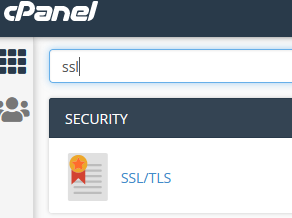
Section titled “Step 1: Open the SSL/TLS Manager”Log in to cPanel and type SSL/TLS into the search bar.
Step 2: Navigate to Install SSL
Section titled “Step 2: Navigate to Install SSL”From the SSL/TLS interface, select Install and Manage SSL for your site (HTTPS).

Step 3: Paste Your Certificate
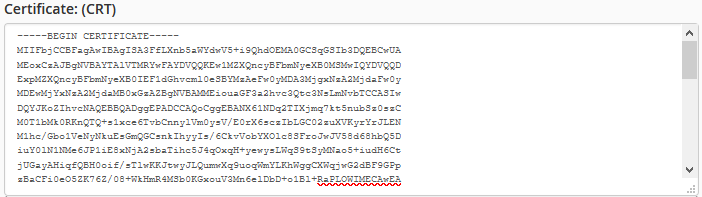
Section titled “Step 3: Paste Your Certificate”In the CRT field, copy and paste the certificate (CRT) you received from your SSL provider.
Step 4: Autofill Remaining Fields
Section titled “Step 4: Autofill Remaining Fields”Click the Autofill by Domain button. This will automatically populate the Private Key and CA Bundle fields.
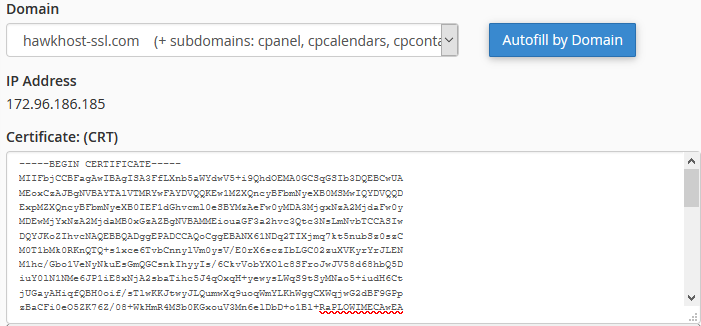
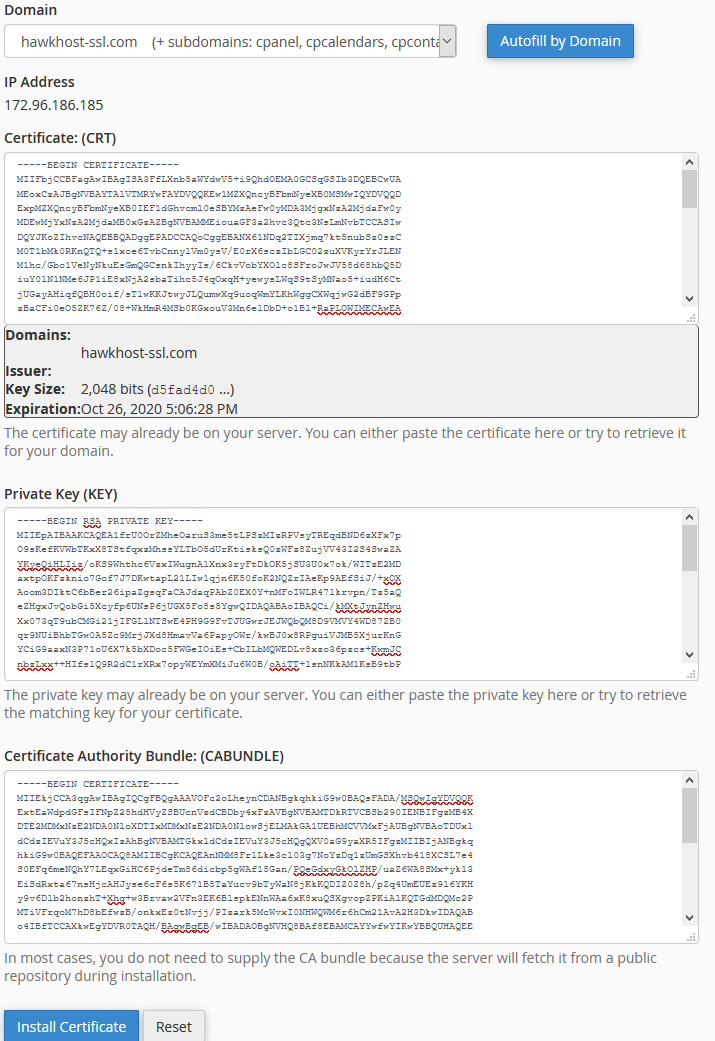
Your Private Key and CABUNDLE fields will now be filled in automatically.
Step 5: Install the Certificate
Section titled “Step 5: Install the Certificate”Click Install Certificate. Your site is now secured via SSL and can use HTTPS.
After Installation
Section titled “After Installation”Once your SSL certificate is installed, you may want to:
If you need assistance with any of these steps, submit a support ticket and provide the steps you have taken along with any errors encountered.