
How do I restore files or databases from Acronis Backup?
Hawk Host takes backups of your entire account — including files, emails, and databases — once per day. Backups are stored for 7 days. You can access these backups and restore your files or databases directly through cPanel.
If you require assistance with restoring files or databases, open a support ticket and provide a list of the files and/or databases you need restored along with the date to restore from.
Restoring Files from Acronis Backup
Section titled “Restoring Files from Acronis Backup”Step 1: Open Acronis Backup in cPanel
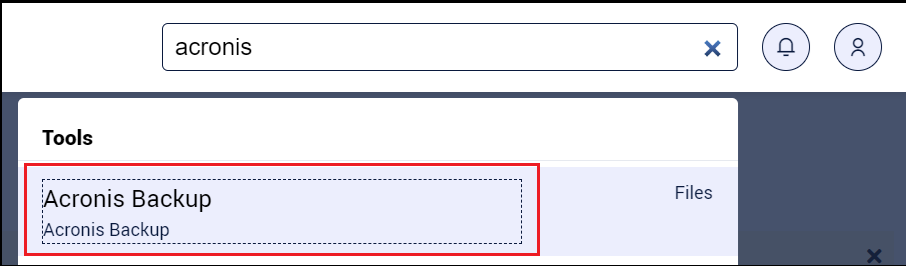
Section titled “Step 1: Open Acronis Backup in cPanel”Log in to cPanel for your account. Use the search bar to locate the Acronis Backup interface and click on it.
Step 2: Select a Recovery Point
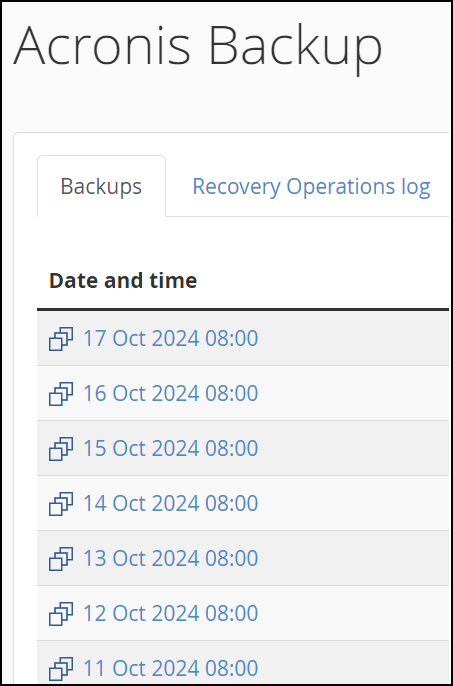
Section titled “Step 2: Select a Recovery Point”Once Acronis loads, your active recovery points will be listed. Click the Date and time link for the day you want to restore from.
Step 3: Wait for Recovery Point to Load
Section titled “Step 3: Wait for Recovery Point to Load”It can take up to 10 minutes for your recovery point to load. This is normal — avoid refreshing the page during this time.
Step 4: Select Files to Restore
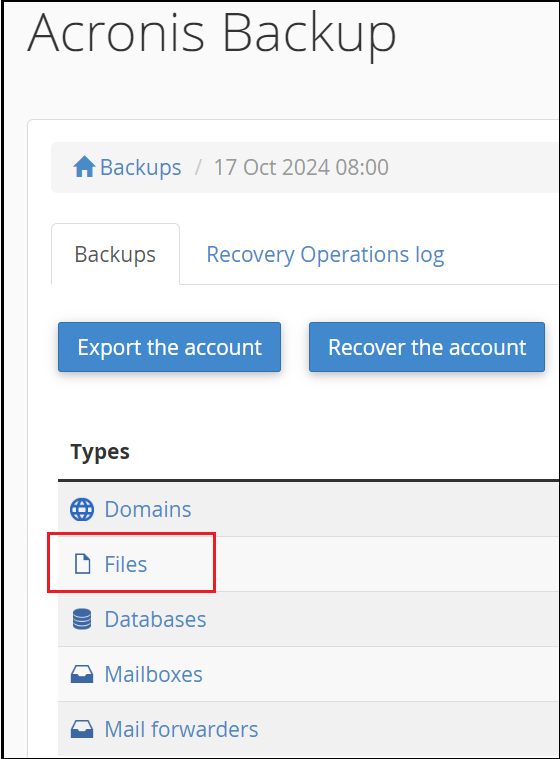
Section titled “Step 4: Select Files to Restore”Once loaded, the Acronis interface will display four options: Files, Databases, Mailboxes, and Mail forwarders. Select the Files link.
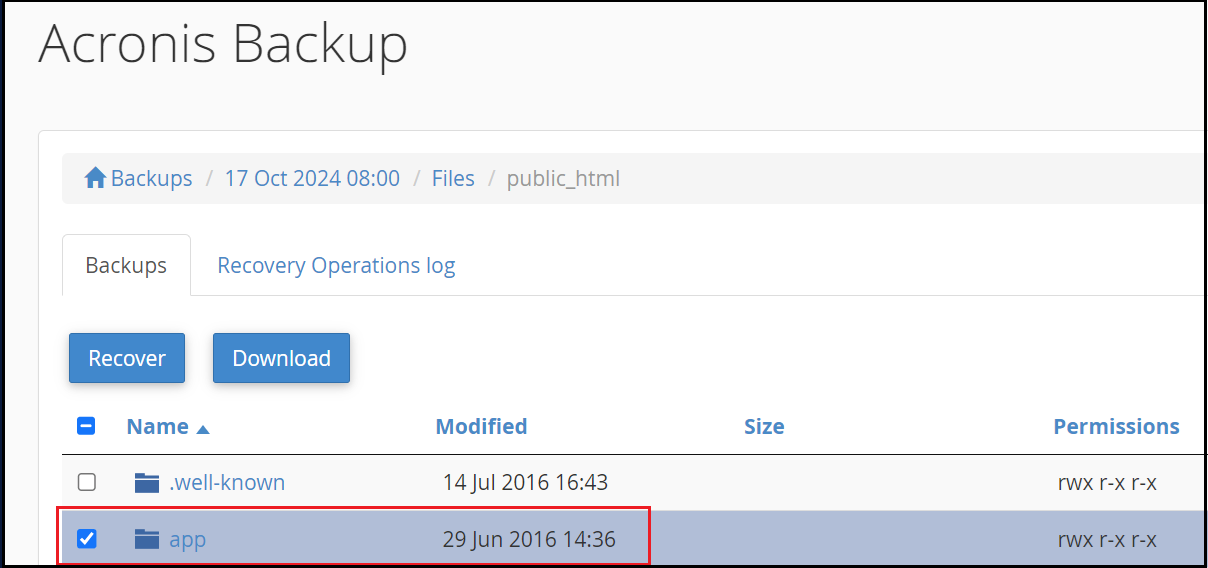
- To restore individual files: Navigate to the directory where your files are located. Once you are in the destination directory, select the file(s) you wish to restore.
- To restore an entire directory: Select the checkbox to the left of the directory name.
Step 5: Start the Recovery
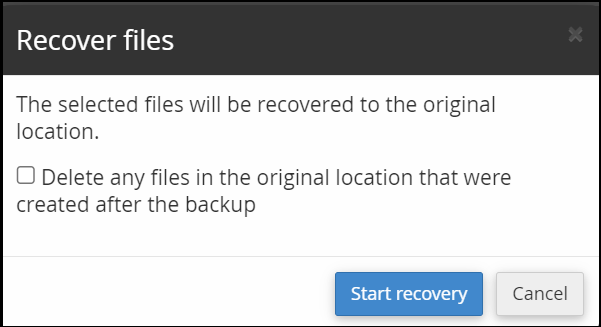
Section titled “Step 5: Start the Recovery”Once you have selected the files and/or directories to restore, click the Recover button. A confirmation dialog will appear — click Start recovery to proceed.
Step 6: Wait for Completion
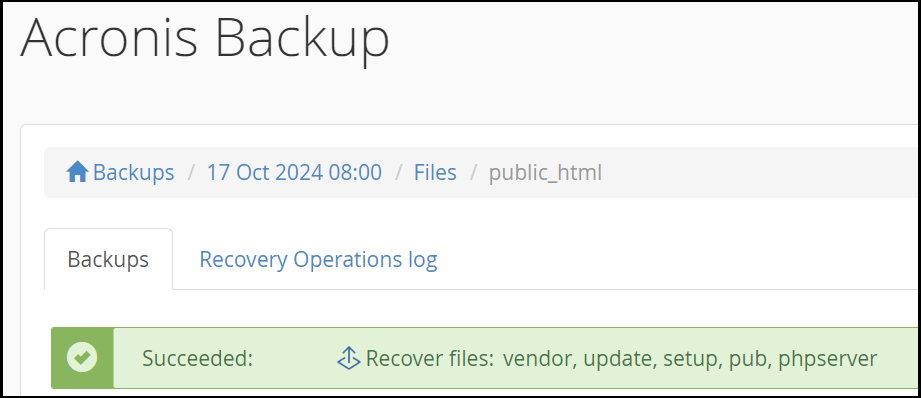
Section titled “Step 6: Wait for Completion”Once the restore is completed, the status message will change to green and show Succeeded.
If the restore fails or does not complete after more than 2 hours, contact our helpdesk for further assistance.
Restoring Databases from Acronis Backup
Section titled “Restoring Databases from Acronis Backup”Step 1: Open Acronis Backup in cPanel
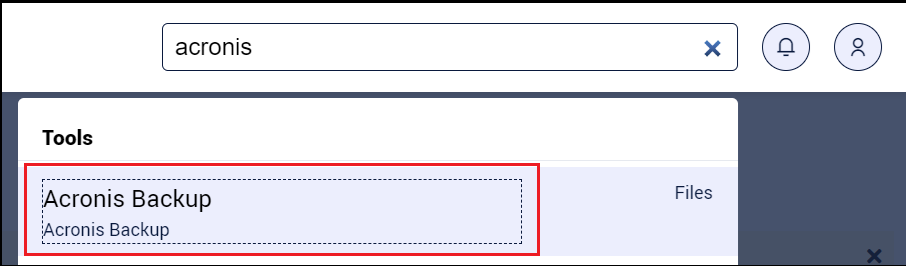
Section titled “Step 1: Open Acronis Backup in cPanel”Log in to cPanel for your account. Use the search bar to locate the Acronis Backup interface and click on it.
Step 2: Select a Recovery Point
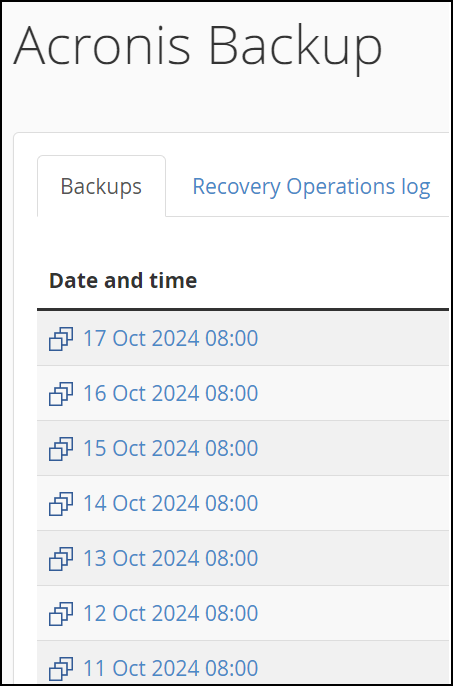
Section titled “Step 2: Select a Recovery Point”Once Acronis loads, your active recovery points will be listed. Click the Date and time link for the day you want to restore from.
Step 3: Wait for Recovery Point to Load
Section titled “Step 3: Wait for Recovery Point to Load”It can take up to 10 minutes for your recovery point to load. This is normal — avoid refreshing the page during this time.
Step 4: Select Databases to Restore
Section titled “Step 4: Select Databases to Restore”Once loaded, the Acronis interface will display four options: Files, Databases, Mailboxes, and Mail forwarders. Select the Databases link.
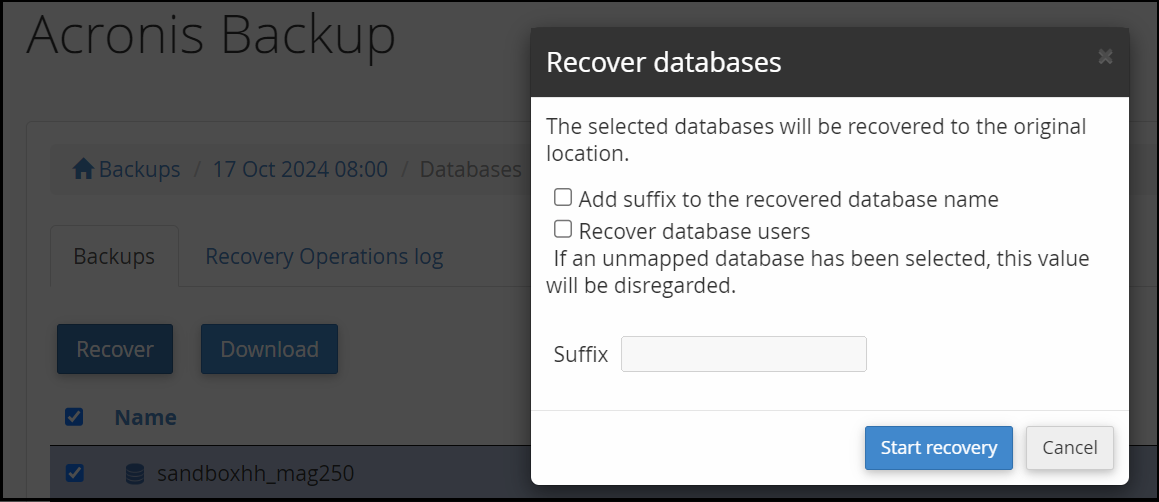
Select the checkbox next to the database(s) you want to restore. Once selected, click the Recover button. A confirmation dialog will appear — click Start recovery to proceed.
Step 5: Wait for Completion
Section titled “Step 5: Wait for Completion”A status message will appear stating the recovery is In Progress.
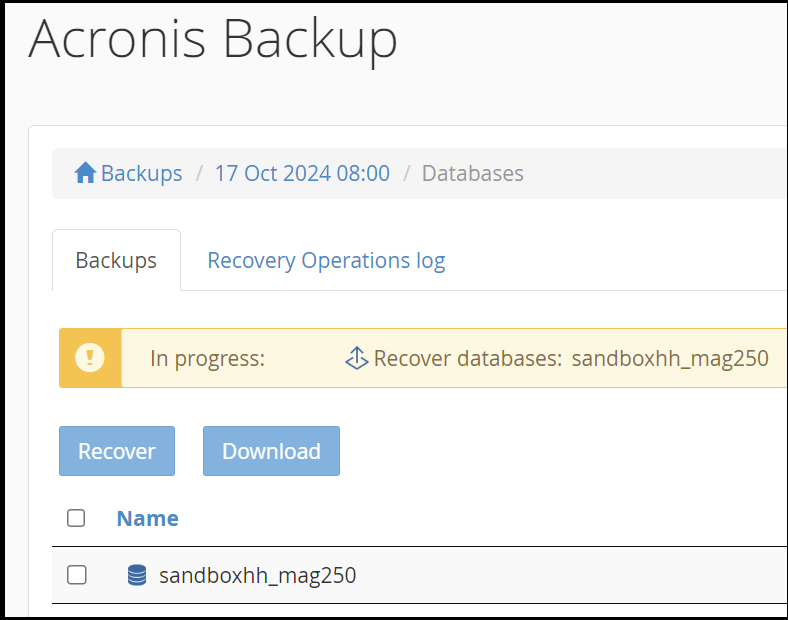
Once the restore is completed, the status message will change to green and show Succeeded.

If the restore fails or does not complete after more than 2 hours, contact our helpdesk for further assistance.