
How do I create DMARC entries for my domain names?
DMARC (Domain-based Message Authentication, Reporting, and Conformance) allows you to configure how receiving mail servers handle email from your domain when SPF or DKIM checks fail.
Adding a DMARC record in cPanel
Section titled “Adding a DMARC record in cPanel”-
Log in to cPanel and search for Zone Editor:
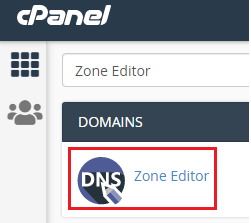
-
Click Manage next to the domain that needs a DMARC record:
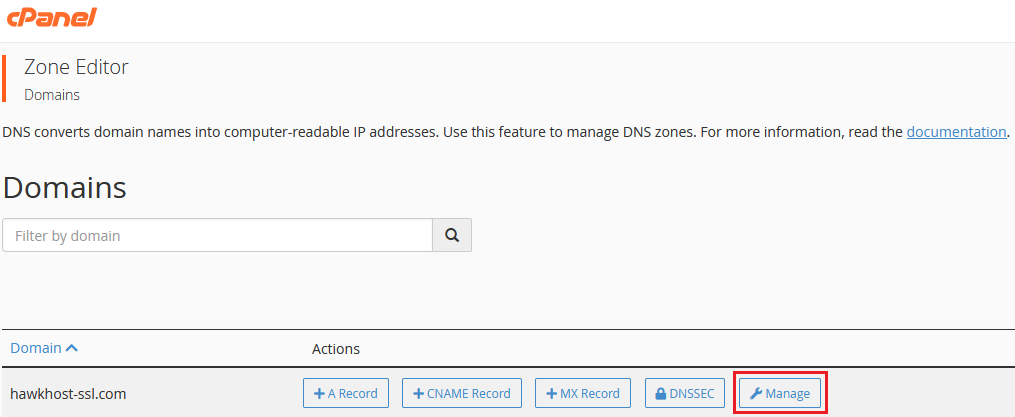
-
Click the dropdown arrow next to + Add Record and select Add “DMARC” Record:
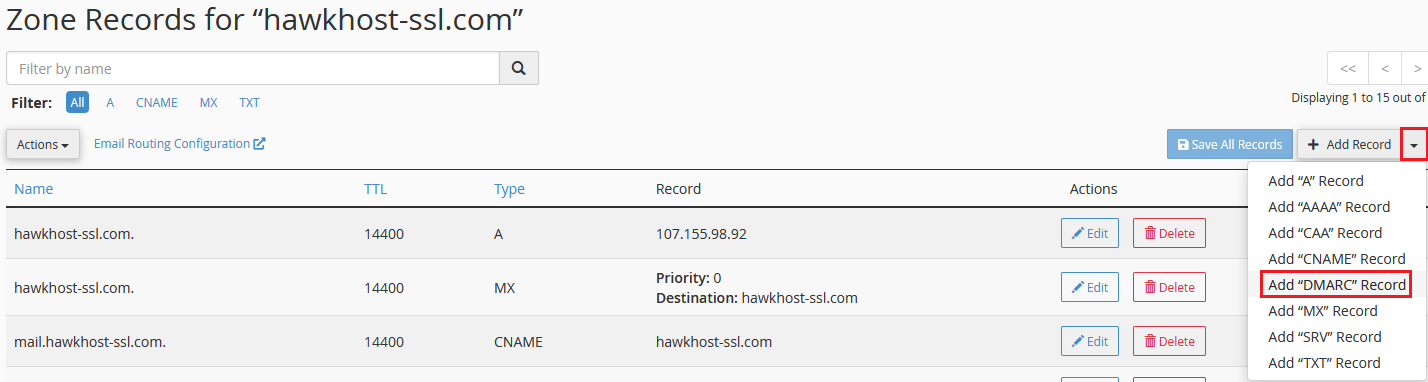
-
A new DNS entry will appear with the name
_dmarc.yourdomain.com, a default TTL of 14400, and type TXT. Configure your DMARC policy:Policy Behavior None Do not take any action on failed checks Quarantine Send failed messages to the recipient’s spam folder Reject Reject messages that fail authentication -
For additional customizations, click Optional Parameters to view the full list of configuration options:
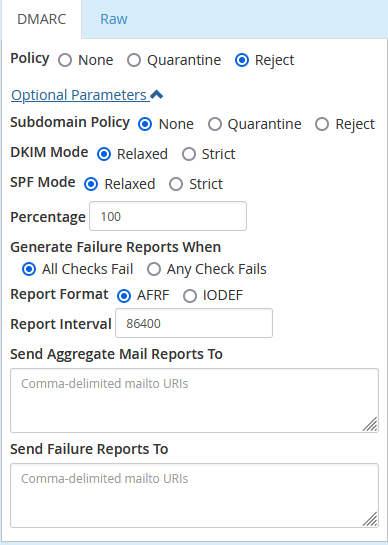
-
Click Save Record when finished. cPanel will automatically create the TXT record.
Verifying your DMARC record
Section titled “Verifying your DMARC record”You can verify your DMARC record via SSH using the dig command:
dig TXT +short _dmarc.yourdomain.comExample output:
"v=DMARC1;p=quarantine;sp=none;adkim=r;aspf=r;pct=100;fo=0;rf=afrf;ri=86400"