Installing WordPress with one-click installer (Softaculous) in cPanel
Softaculous enables one-click installations of WordPress through cPanel, which takes less than five minutes to complete.
How to Install WordPress with Softaculous
Section titled “How to Install WordPress with Softaculous”-
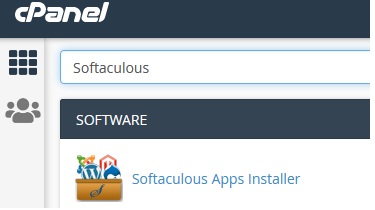
Log in to your hosting account’s cPanel and use the search bar to find “Softaculous”.
-
Click the Softaculous Apps Installer icon that appears. You will be redirected to the Softaculous interface.
-
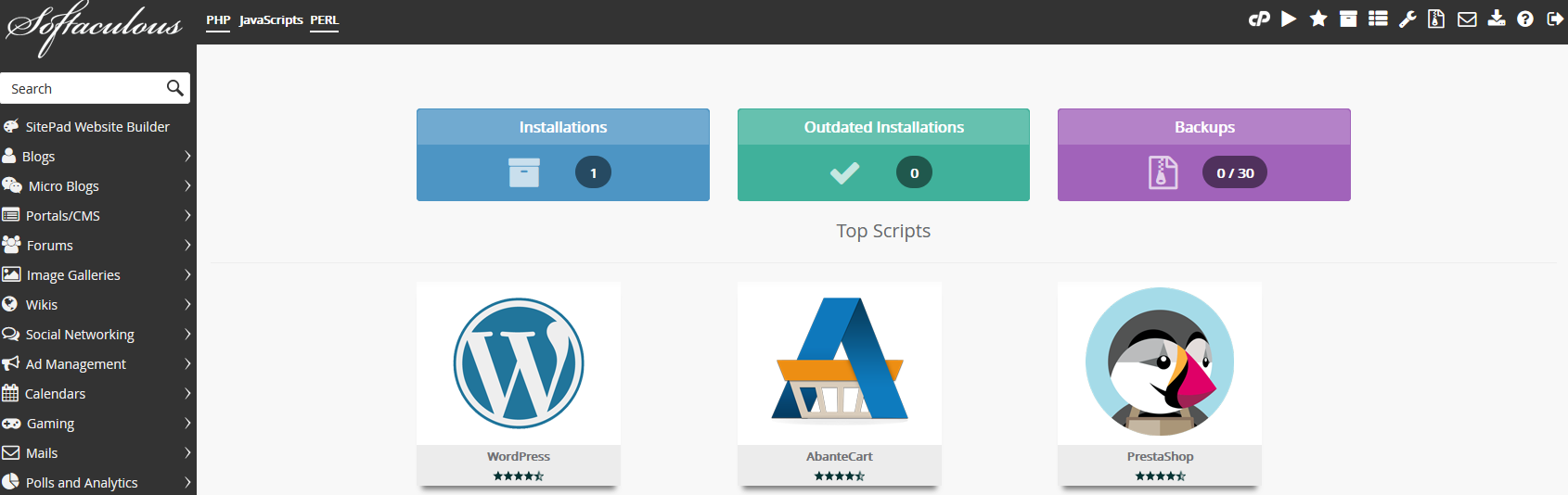
WordPress will be shown directly on the Softaculous dashboard. Click the box showing the WordPress icon.
-
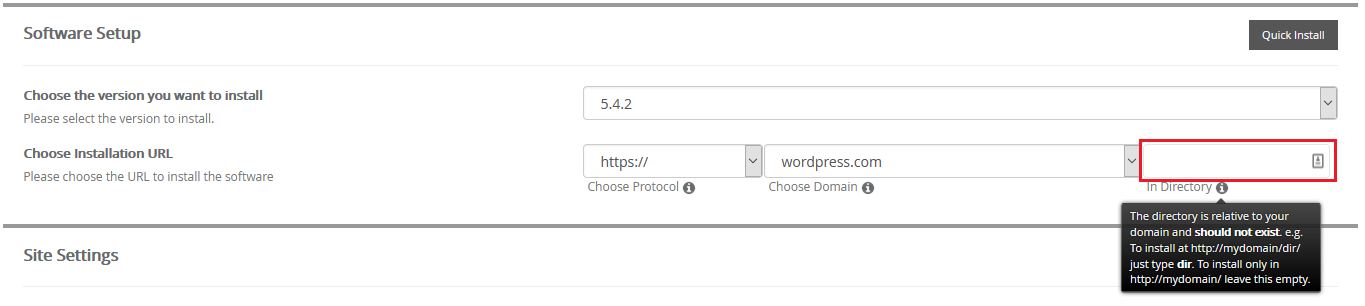
You will be presented with your installation options, including your installation URL.
-
Scroll down the installation page while modifying your WordPress installation details as necessary. Once completed, scroll down to the bottom of the page and click the Install button. You can optionally have the installation details emailed to you.
-
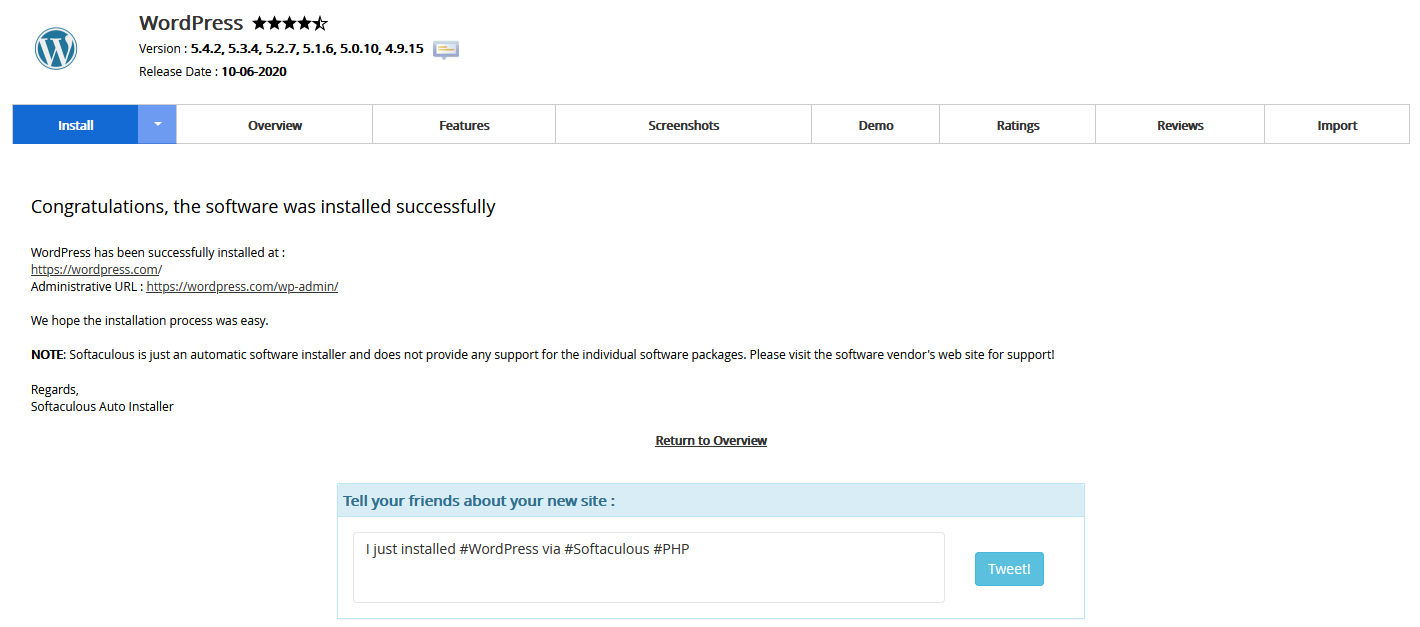
The installation should only take two to three minutes to complete. Once completed, you will see a page showing the message “Congratulations, the software was installed successfully”.