
Disabling WP-Cron and using a real cron job
WordPress has a built-in task scheduler called WP-Cron that handles scheduled events such as publishing posts, sending emails, checking for updates, and running plugin tasks. However, WP-Cron only runs when someone visits your site — it is not a true cron job. This means scheduled tasks can be delayed or missed entirely on low-traffic sites.
Replacing WP-Cron with a real server-side cron job ensures your scheduled tasks run reliably and on time. It also removes the small overhead of checking for due tasks on every page load, which can slightly improve performance.
cPanel WordPress Management Method
Section titled “cPanel WordPress Management Method”Hawk Host offers a built-in method to disable WP-Cron and set up a system-level cron job through the WordPress Management tool in cPanel. This is the recommended approach for most users.
-
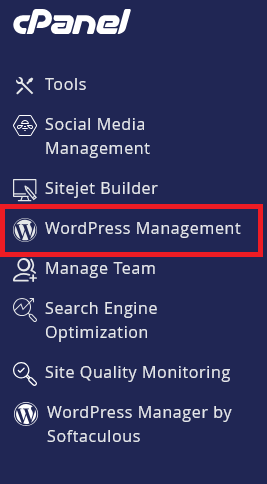
Log in to cPanel and search for WordPress Management:
-
Click on WordPress Management to open the dashboard:
-
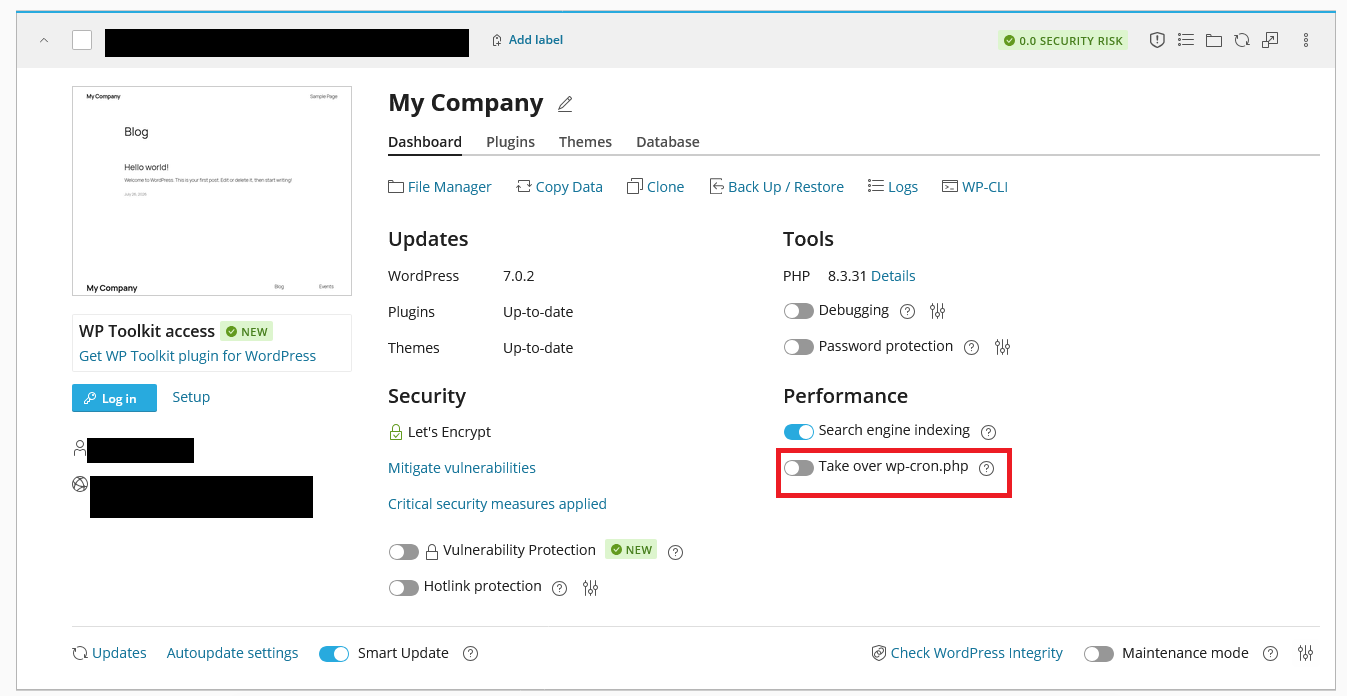
Toggle the Take over wp-cron.php switch to the On position:
Manual Method
Section titled “Manual Method”Step 1: Disable WP-Cron
Section titled “Step 1: Disable WP-Cron”-
Log in to cPanel and search for File Manager:

-
Navigate to the document root for your WordPress site (typically
public_html), right-clickwp-config.php, and select Edit:
-
Add the following line above the line that reads
/* That's all, stop editing! Happy publishing. */:define( 'DISABLE_WP_CRON', true );
-
Click Save Changes in the top-right corner of the editor.
Step 2: Create a cron job in cPanel
Section titled “Step 2: Create a cron job in cPanel”-
In cPanel, search for Cron Jobs and open it:

-
Under Add New Cron Job, select a schedule from the Common Settings dropdown. Once Per Hour (
0 * * * *) is a good default for most sites. Sites that depend on more precise scheduling (e.g., time-sensitive emails or frequent post publishing) can use Twice Per Hour or Every 15 Minutes instead. -
In the Command field, enter:
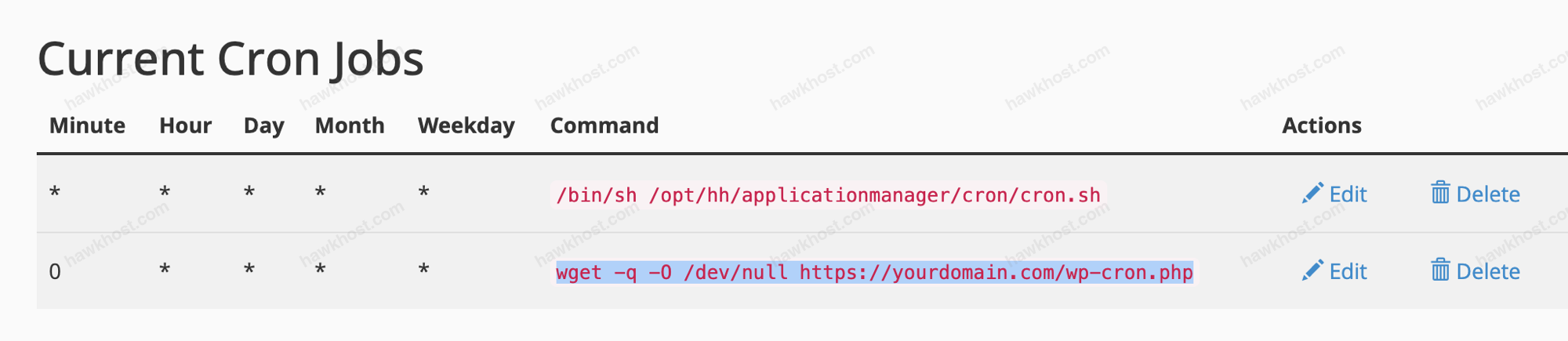
Terminal window wget -q -O /dev/null https://yourdomain.com/wp-cron.phpReplace
https://yourdomain.comwith your actual domain. The-qflag silences output and-O /dev/nulldiscards the response so it does not accumulate in your hosting account.
-
Click Add New Cron Job to save. The new cron job will appear under Current Cron Jobs:
Verifying it works
Section titled “Verifying it works”After setting up the cron job, confirm that WordPress scheduled tasks are still running correctly:
- Scheduled posts should publish on time without requiring a site visit.
- In the WordPress admin dashboard, plugins that rely on WP-Cron (such as backup or email plugins) should continue to run on schedule.
- If you use the WP-Crontrol plugin, you can view all scheduled events and confirm they are firing as expected.