
Installing Advanced Poll with Softaculous
Softaculous enables one-click installations of Advanced Poll through cPanel, which takes less than five minutes to complete.
How to Install Advanced Poll with Softaculous
Section titled “How to Install Advanced Poll with Softaculous”-
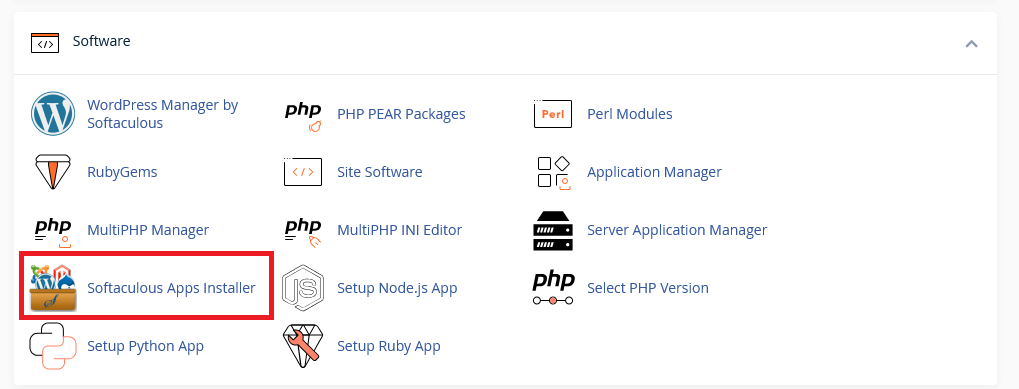
Log in to your hosting account’s cPanel and use the search bar to find “Softaculous” or navigate to the Softaculous Apps Installer under the Software section
-
Click the Softaculous Apps Installer icon that appears. You will be redirected to the Softaculous interface.
-
You can use the search bar to find “Advanced Poll”.

-
You will be presented with your installation options, including your installation URL.
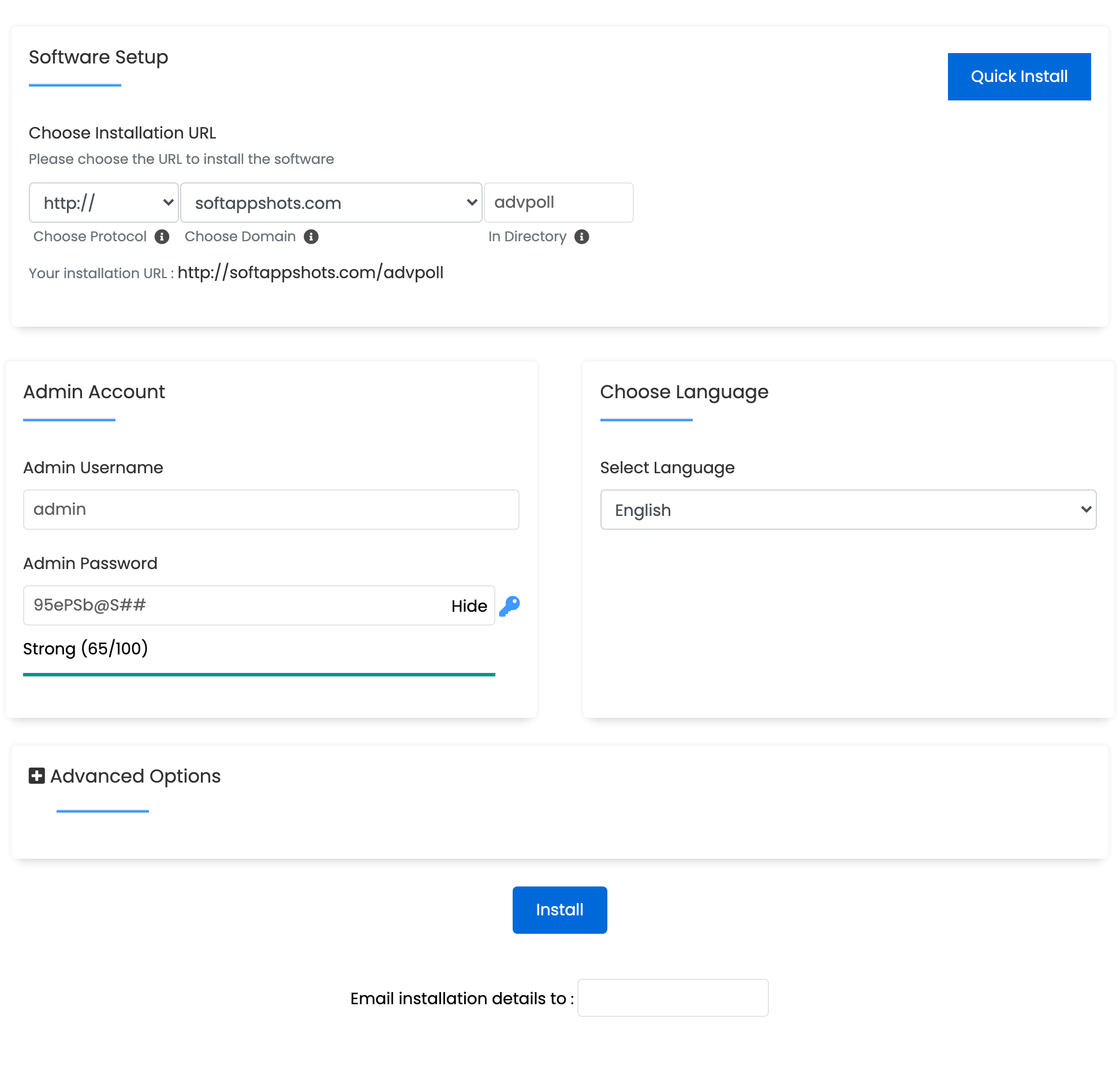
- Set Protocol to https:// for a secure environment.
- Set domain to your desired domain.
- Set Install Directory to the path where you want to install Advanced Poll (e.g.,
polls). If you wish for Advanced Poll to load on your main domain, leave the directory blank.
-
Scroll down and you will have the option to configure your login credentials.
- Set the admin username and password. We recommend using a strong, unique password.
-
The installation should only take two to three minutes to complete. Once completed, you will see a page showing the message “Congratulations, the software was installed successfully”.
Advanced Poll Hosting Made Easy
Fast NVMe Storage • Free Migrations • 24/7 Expert Support