
Installing ProjectPier with Softaculous
Softaculous enables one-click installations of ProjectPier through cPanel, which takes less than five minutes to complete.
How to Install ProjectPier with Softaculous
Section titled “How to Install ProjectPier with Softaculous”-
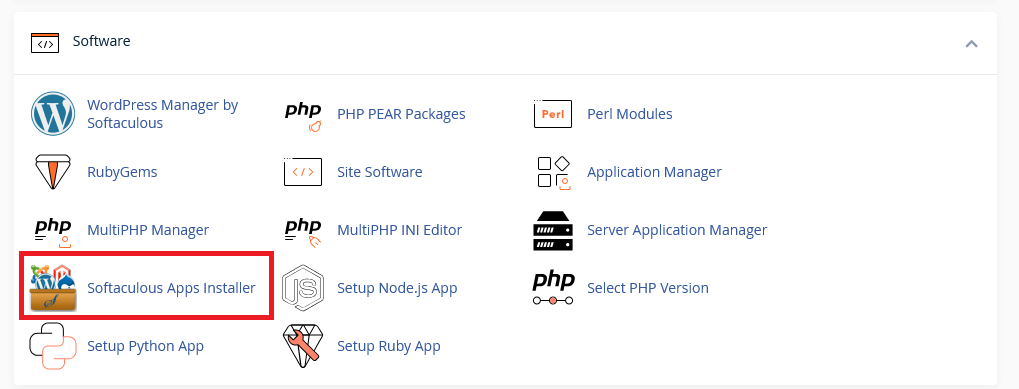
Log in to your hosting account’s cPanel and use the search bar to find “Softaculous” or navigate to the Softaculous Apps Installer under the Software section
-
Click the Softaculous Apps Installer icon that appears. You will be redirected to the Softaculous interface.
-
You can use the search bar to find “ProjectPier”.

-
You will be presented with your installation options, including your installation URL.
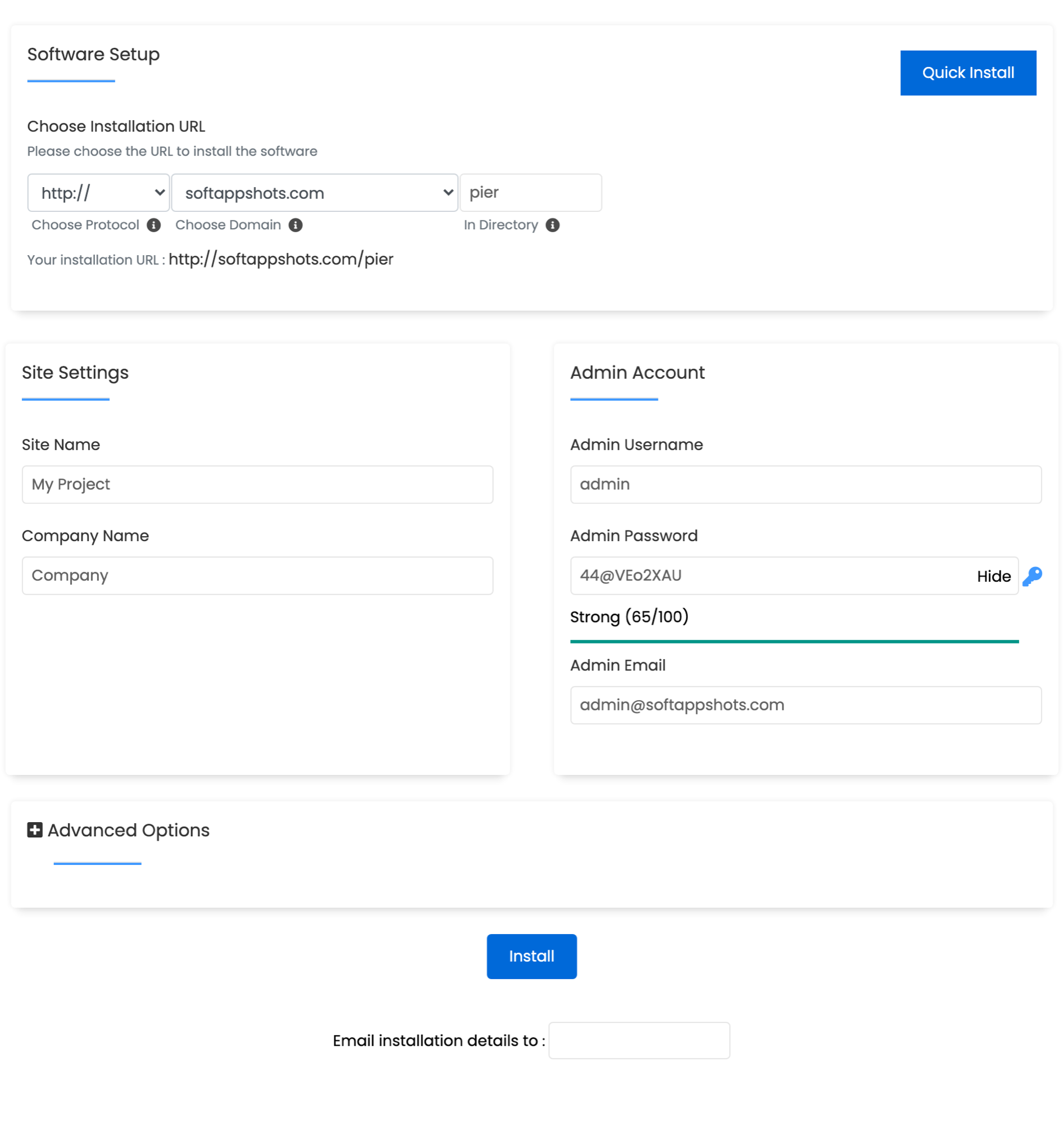
- Set Protocol to https:// for a secure environment.
- Set domain to your desired domain.
- Set Install Directory to the path where you want to install ProjectPier (e.g.,
pm). If you wish for ProjectPier to load on your main domain, leave the directory blank.
-
Scroll down and you will have the option to configure your site settings and login credentials.
- Set the site name and company name.
- Set the admin username, password, and email. We recommend using a strong, unique password.
-
The installation should only take two to three minutes to complete. Once completed, you will see a page showing the message “Congratulations, the software was installed successfully”.
ProjectPier Hosting Made Easy
Fast NVMe Storage • Free Migrations • 24/7 Expert Support