
Imunify360 Malware Scanner: How to ignore files and folders?
Imunify360 allows you to ignore files and folders from malware scanning. Imunify360 can produce false positives with applications that may be obfuscating their code, similar to malware. We highly recommend that, before you ignore a file or folder, you confirm that the file or files are not, in fact, malware.
How to ignore files and folders
Section titled “How to ignore files and folders”-
Log in to your cPanel account.
-
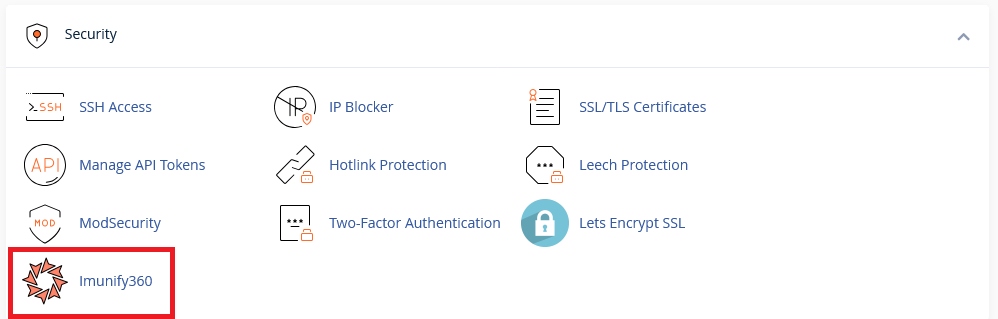
Navigate to the security section and click on Imunify360.
-
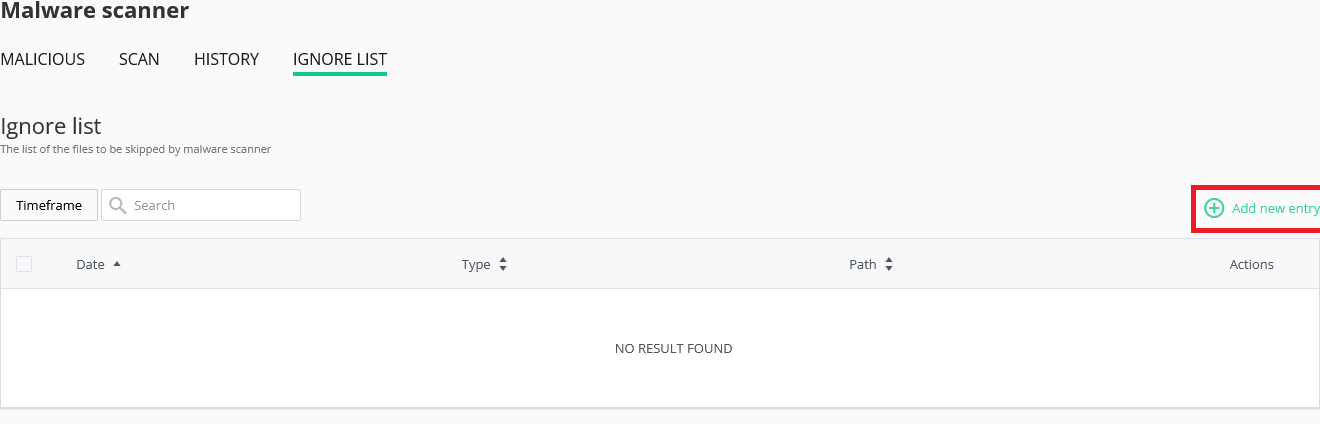
Click on the Ignore List tab.
-
Click on the Add new entry option.
-
Enter the path to the file or folder you wish to ignore. Imunify360 requires the full path to the file or folder including your home directory. For example, if you want to ignore the file
examplefile.phpin yourpublic_htmldirectory, you would enter/home/username/public_html/examplefile.php.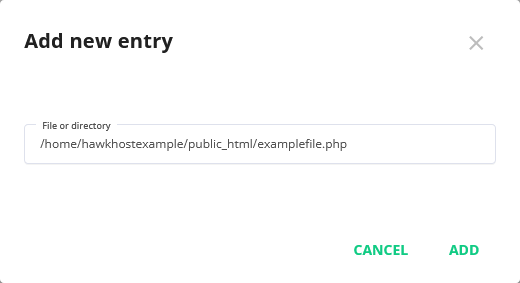
If you want to ignore a folder, you specify the folder path without a trailing slash. For example, if you want to ignore the folder
example-folderin yourpublic_htmldirectory, you would enter/home/username/public_html/example-folder.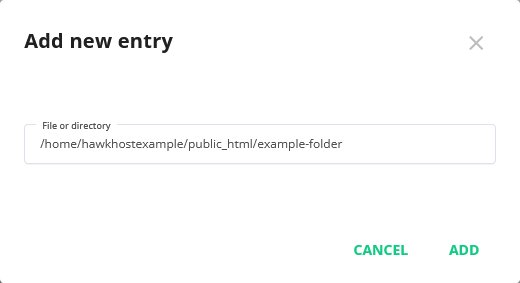
-
Click Add.
-
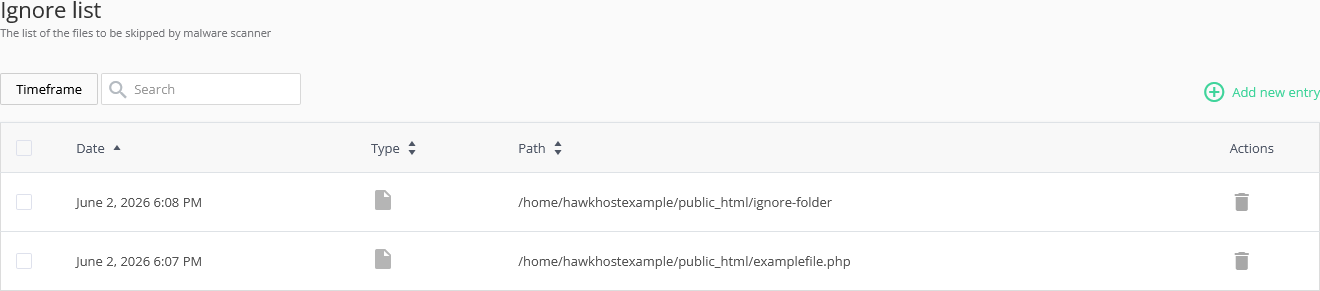
The file or folder will now be ignored by Imunify360 and shown in the ignore list.
How to remove files and folders from the ignore list
Section titled “How to remove files and folders from the ignore list”You can remove files and folders from the ignore list by using the following steps:
-
Log in to your cPanel account.
-
Navigate to the security section and click on Imunify360.
-
Click on the Ignore List tab.
-
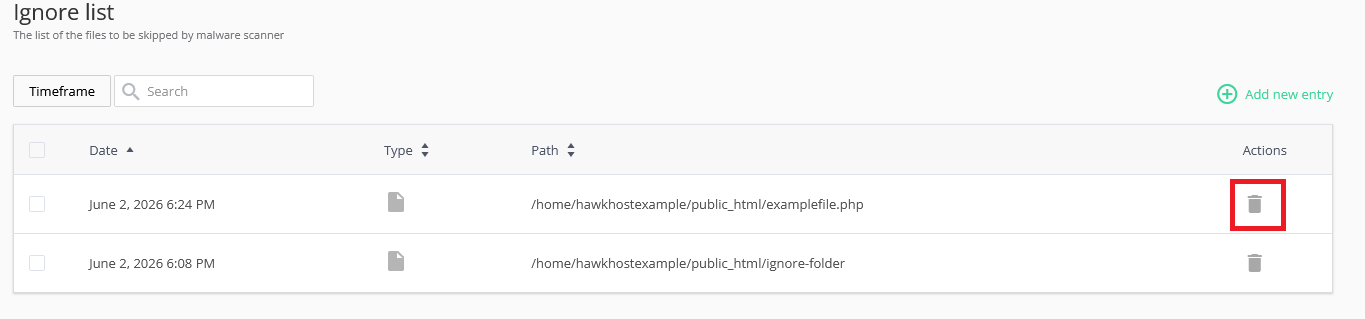
Find the file or folder you wish to remove from the ignore list.
-
Beside the file or folder, click on the Trash button (🗑️) under the Actions column.
-
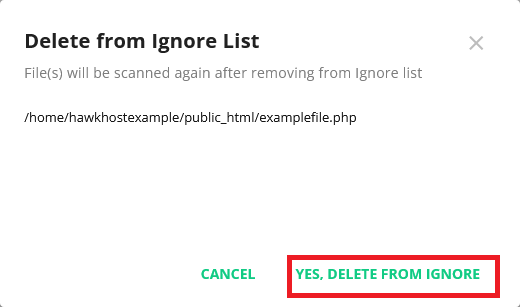
A confirmation dialog will appear. Click Yes, Delete From Ignore to confirm the removal.
-
The file or folder will now be removed from the ignore list and will be scanned by Imunify360.