How Does Imunify360 Malware Scanning Work?
Imunify360 provides a comprehensive malware scanning system that not only detects but also automatically cleans infected files.
Automatic New File / Modified File Scanning
Section titled “Automatic New File / Modified File Scanning”Imunify360 malware scanner monitors file changes in user accounts. Once a new file is detected or a file is modified, it is automatically scanned by the Imunify360 scanning system. The scanning system is optimized for performance by leveraging the file change detection feature built into CloudLinux. As a result, there is minimal overhead to scanning files.
Automatic Scanning of Web Uploads
Section titled “Automatic Scanning of Web Uploads”Imunify360 malware scanner leverages the web server’s built-in capabilities to scan files as they’re uploaded. The capability reduces the time from detection to either removal or cleaning, as files are detected before they reach their final destination in your account.
Automatic FTP Scanning
Section titled “Automatic FTP Scanning”Imunify360 malware scanner leverages the ability to scan all files uploaded via FTP during the upload process. The upload scanning capability means files are scanned during the upload process rather than when they reach the final destination on your account.
Automatic cPanel File Manager Scanning
Section titled “Automatic cPanel File Manager Scanning”Imunify360 malware scanner hooks into the cPanel file manager, allowing it to scan files uploaded via cPanel before they are written to your account.
Weekly Scans
Section titled “Weekly Scans”Once a week, Imunify360 malware scanning is performed on all accounts. Weekly scans do not involve re-scanning all files; instead, they use smart, limited scanning. Imunify360 has a local cache of previously scanned files and compares them against new known malware signatures. Imunify360 also scans a percentage of files when no known signatures are available, but new rules now detect malicious code within those files.
Cron Job Scanning
Section titled “Cron Job Scanning”Imunify360 automatically scans the user’s crontab, which contains all cron jobs on an account. It looks for known and suspicious cron jobs and removes them.
Cleaning Malware
Section titled “Cleaning Malware”When Imunify360 detects malware, it will first attempt to clean the file, removing only the code containing the malware. The cleaning strategy ensures a website remains functional even if core files contain malware. If Imunify360 is unable to clean a file, then it will be quarantined.
Initiating Manual Malware Scan
Section titled “Initiating Manual Malware Scan”Initiating a Malware Scan is possible, though typically unnecessary given the comprehensive scanning already performed. All manually initiated scans are added to the server queue and executed in the order they are requested. Imunify360 weekly scan is currently part of the same queue; as a result, it can take up to 48 hours for a manual scan to be completed. You can initiate a manual scan by doing the following:
-
Log in to your cPanel account.
-
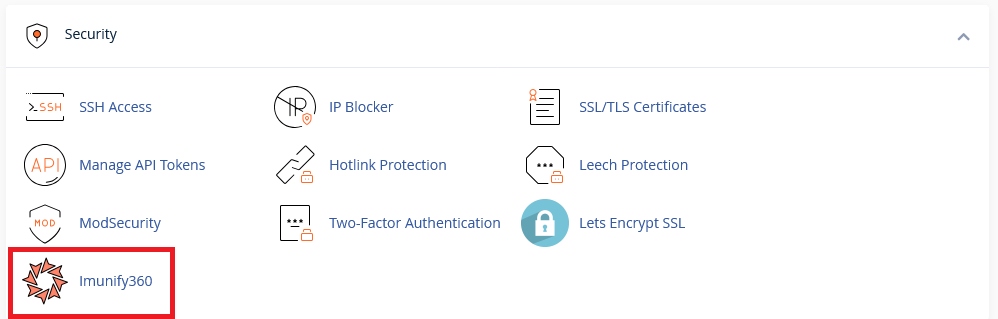
Navigate to the security section and click on Imunify360.
-
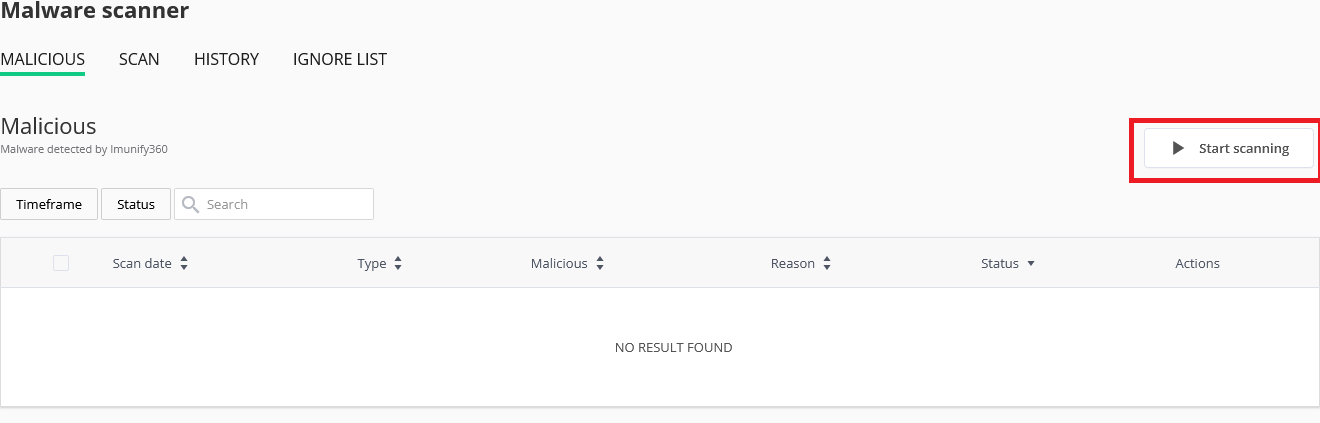
Click on the Start scanning button.