
How to Password Protect WordPress
Hawk Host WordPress Management allows the ability to quickly password protect the entire WordPress website. Restricting public access with a username and password can be useful when the WordPress website is a work in progress or is a staging copy of a live WordPress website.
Password Protecting Your WordPress Website
Section titled “Password Protecting Your WordPress Website”-
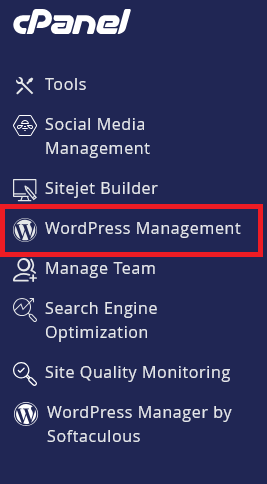
Log in to cPanel and search for WordPress Management:
-
Click on WordPress Management to open the dashboard:
-
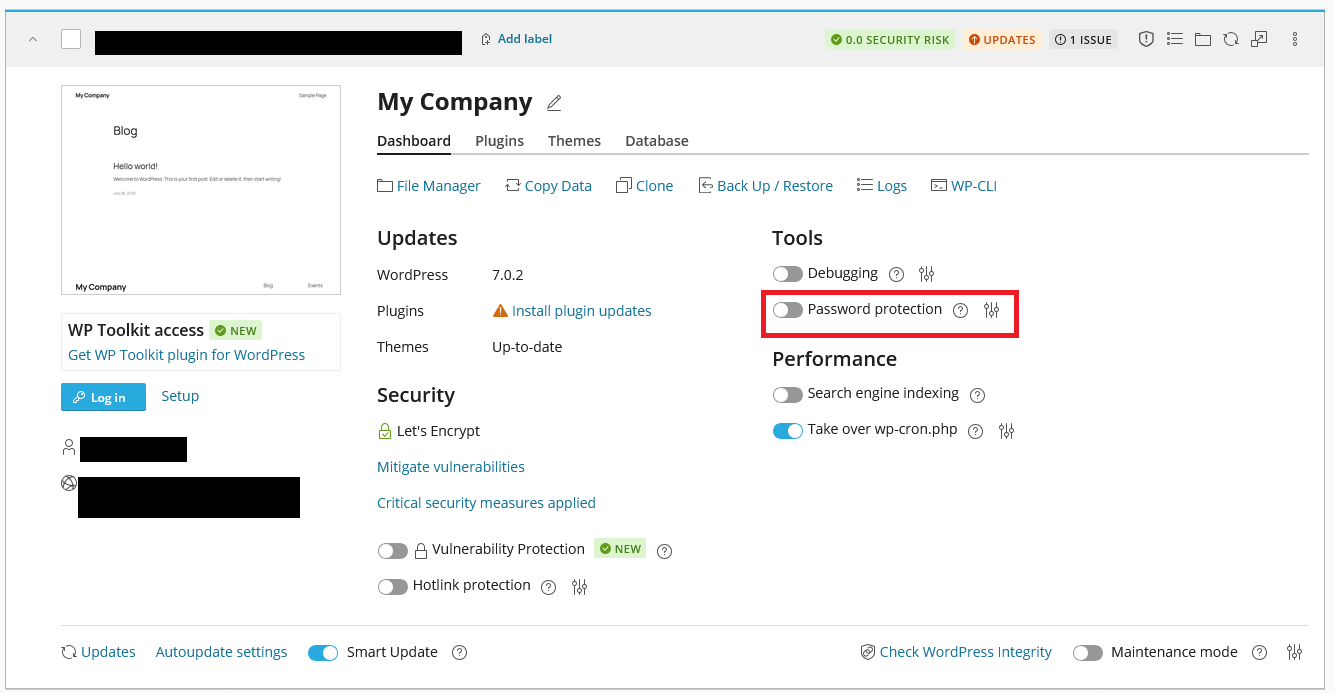
Find your WordPress site in the list you wish to password protect
-
Switch the Password Protect toggle to On:
-
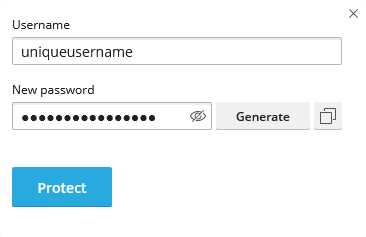
Enter a username and password for the password protection
-
Click the
Protectbutton to save the password protection
Removing Password Protection
Section titled “Removing Password Protection”To remove password protection from your WordPress website:
-
Log in to cPanel and search for WordPress Management:
-
Click on WordPress Management to open the dashboard:
-
Find your WordPress site in the list you wish to remove password protection from
-
Switch the Password Protect toggle to Off:
Changing Password Protection Password
Section titled “Changing Password Protection Password”To change the password protection password for your WordPress website:
-
Log in to cPanel and search for WordPress Management:
-
Click on WordPress Management to open the dashboard:
-
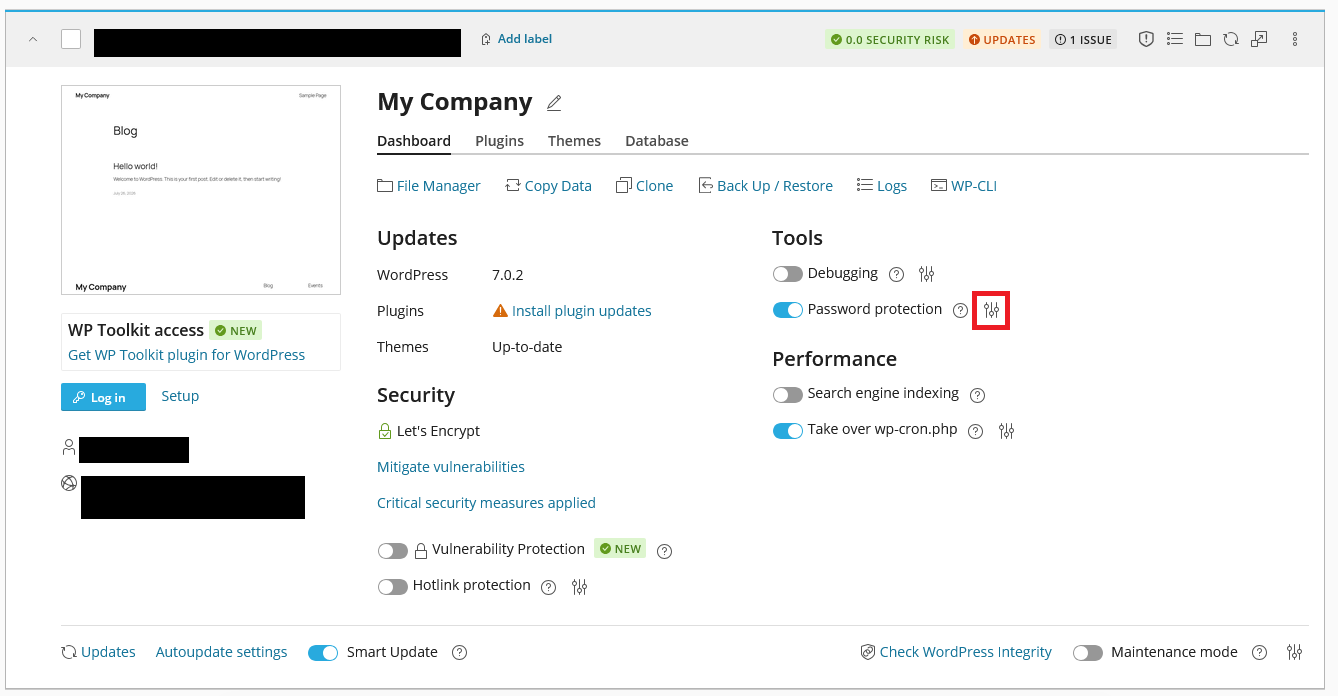
Find your WordPress site in the list you wish to change the password protection password for
-
Click the Option Button beside Password Protection
-
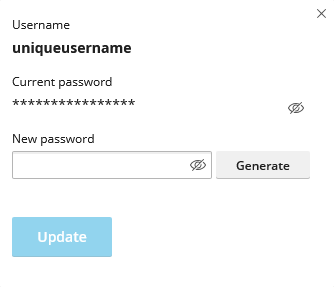
Enter your new password
-
Click the
Updatebutton to save the password protection
WordPress Hosting Made Easy
Fast NVMe Storage • Free Migrations • 24/7 Expert Support