
How to Enable WordPress Smart Update
Hawk Host offers WordPress Management in cPanel, which lets you update WordPress and test updates before they are deployed to your production website.
How Smart Update Works
Section titled “How Smart Update Works”Smart Update tests WordPress updates without affecting the production site. It clones your site, updates the clone, and runs a number of checks to see if updates have broken anything. You can review test results and check the test site itself to make an informed decision about updating your production site.
Prerequisites
Section titled “Prerequisites”Before enabling the smart update feature, ensure you have sufficient disk space on your account to perform a complete clone of your WordPress installation. If you do not have enough disk space, we recommend upgrading before enabling the smart update feature.
How to Enable Smart Update
Section titled “How to Enable Smart Update”-
Log in to cPanel and search for WordPress Management:
-
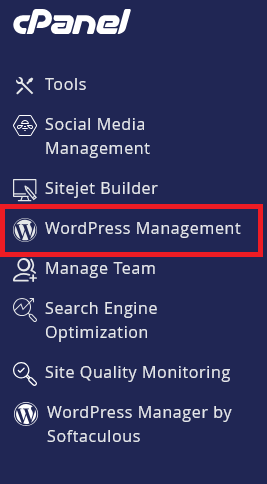
Click on WordPress Management to open the dashboard:
-
Find your WordPress site in the list you wish to enable Smart Update
-
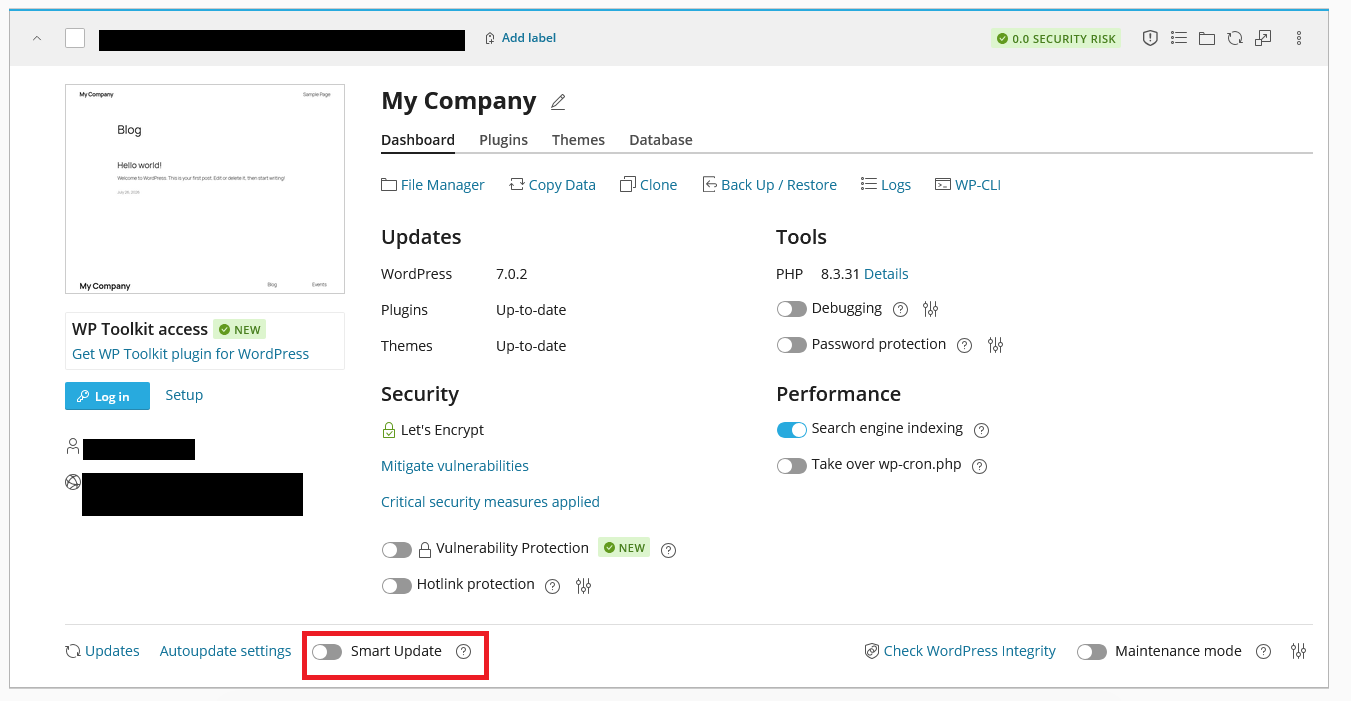
Toggle the Enable Smart Update switch to the On position:
How to Disable Smart Update
Section titled “How to Disable Smart Update”-
Log in to cPanel and search for WordPress Management:
-
Click on WordPress Management to open the dashboard:
-
Find your WordPress site in the list you wish to disable Smart Update
-
Toggle the Enable Smart Update switch to the Off position:
Extra Precautions
Section titled “Extra Precautions”If the smart update completes but you still need to revert your site due to an undetected issue, you can restore files and databases in cPanel using Acronis Backup.
WordPress Hosting Made Easy
Fast NVMe Storage • Free Migrations • 24/7 Expert Support