
How to Create a Clone of a WordPress Site
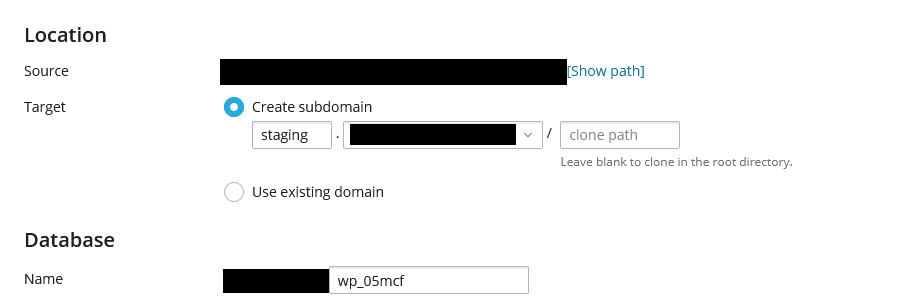
The Hawk Host WordPress Management system allows you to completely clone your WordPress website into either a subdomain or a folder. Cloning your WordPress site lets you stage or test changes without affecting your live site. You can create a copy of your website in a subdomain such as staging.yourdomain.com, or in a folder, such as yourdomain.com/staging. We recommend using a subdomain if possible to avoid interfering with your live WordPress website. When you select the subdomain option, the subdomain is automatically created in cPanel during the cloning process.
Cloning Your WordPress Site
Section titled “Cloning Your WordPress Site”-
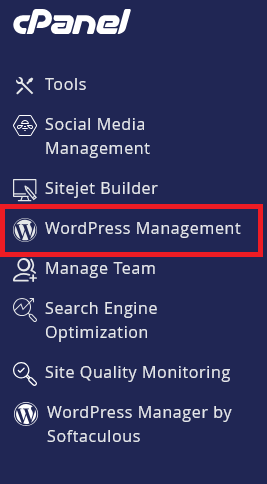
Log in to cPanel and search for WordPress Management:
-
Click on WordPress Management to open the dashboard:
-
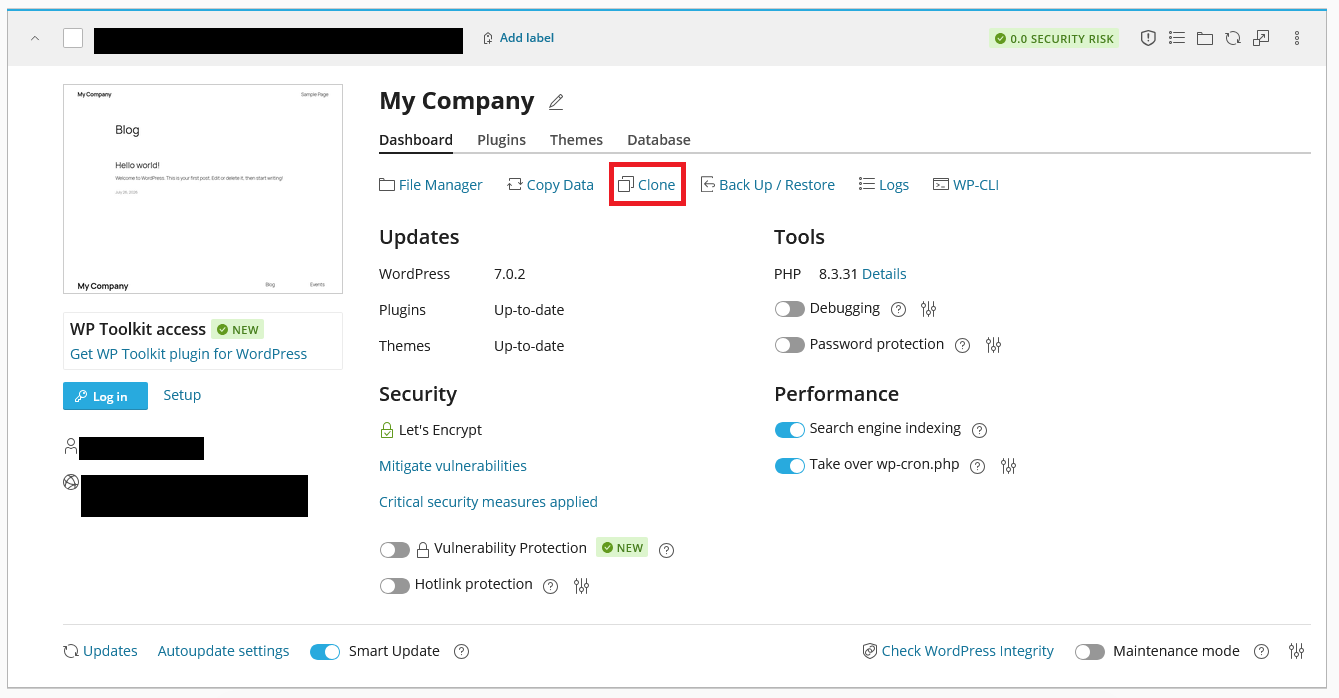
Find your WordPress site in the list you wish to clone
-
Click on the Clone option for that site
-
Choose whether you want to clone to a subdomain or a folder.
-
Click the
Startbutton to begin the cloning process. -
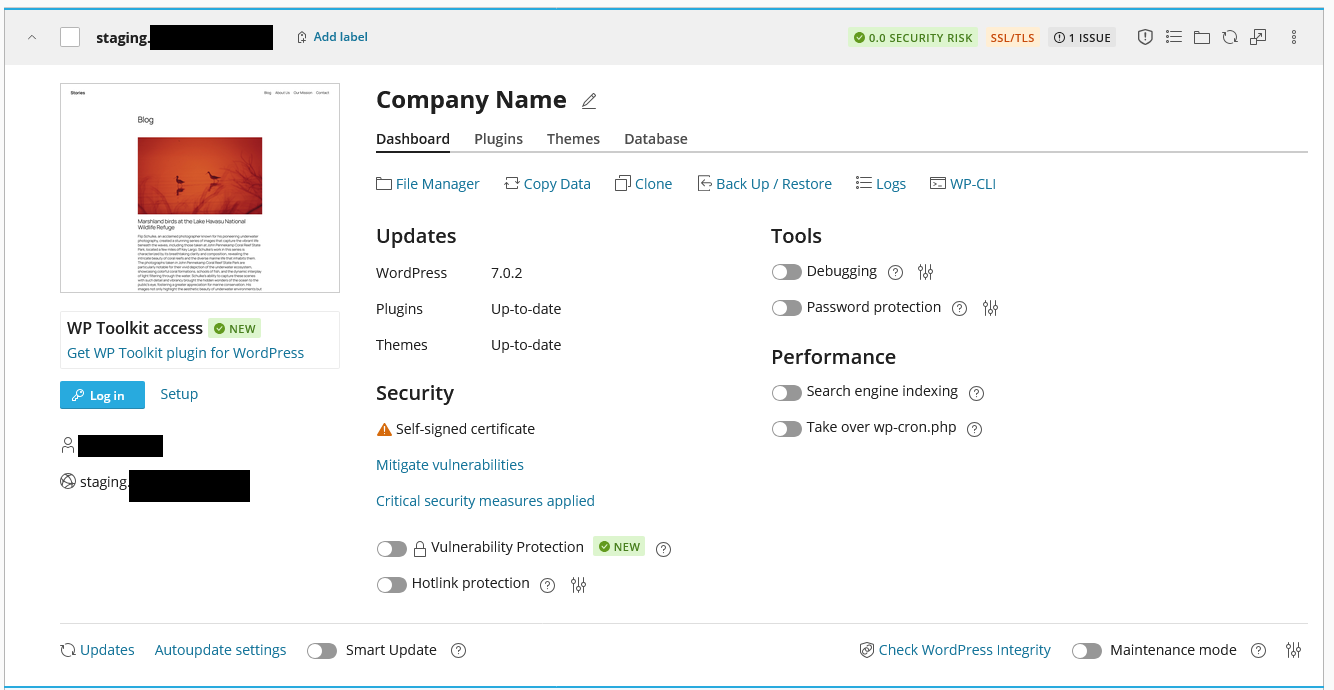
Wait for the cloning process to complete. Upon completion, you will see the new clone listed in your WordPress Management dashboard.
Accessing Your Cloned Site
Section titled “Accessing Your Cloned Site”Once your clone is created, you can access it using the URL you specified during the cloning process. For example, if you cloned to a subdomain, you would visit staging.yourdomain.com. If you cloned to a folder, you would visit yourdomain.com/staging. You will be able to access the WordPress admin using the same username and password you used on your live WordPress website. You can proceed to make changes without affecting your live WordPress website.
Moving Staging to Live WordPress Site
Section titled “Moving Staging to Live WordPress Site”When you are ready to move your staging site to live, you can use the copy data functionality to copy the data from your staging site to your live site. You can refer to our How to Copy a WordPress Website to Another Site (Including Staging) guide for more information.
Additional Considerations
Section titled “Additional Considerations”You will need to keep in mind that the cloned WordPress website is live, and the same security precautions should be taken. We recommend enabling password protection, if possible, to prevent public access. If you have finished with your staging changes, we also recommend removing the cloned WordPress website.
WordPress Hosting Made Easy
Fast NVMe Storage • Free Migrations • 24/7 Expert Support