
How to Copy a WordPress Website to Another Site (Including Staging)
Hawk Host’s WordPress management system allows you to copy one WordPress site to another. The copy operation is especially useful when you wish to push staging changes to your live WordPress website.
Copy Data Options
Section titled “Copy Data Options”Files Only
Section titled “Files Only”Copy the changes in WordPress files, including the core, theme and plugin files, to the target WordPress installation.
Database Only
Section titled “Database Only”Copy all, new, or selected database tables to the target WordPress installation.
Files and Database
Section titled “Files and Database”Copy the changes in WordPress files, including the core, theme, and plugin files, and import all, new, or selected WordPress database tables to the target WordPress installation.
Database Options
Section titled “Database Options”All Tables
Section titled “All Tables”Copy all database tables to the target WordPress installation. You can also exclude copying content related tables. The currently supported content related tables are as follows:
WordPress Core
Section titled “WordPress Core”postmeta: Post metadataposts: Posts & pagesusermeta: User metadatausers: WordPress users
WooCommerce
Section titled “WooCommerce”wc_orders: WooCommerce orderswc_order_addresses: Shipping addresseswc_order_operational_data: Order statuseswc_orders_meta: Order metadata
New tables Only
Section titled “New tables Only”Copy only new database tables to the target WordPress installation.
Selected tables
Section titled “Selected tables”You can select the specific tables you want to copy. You will be provided with a complete list of tables and the ability to check which ones you wish to copy.
How to Copy Data
Section titled “How to Copy Data”-
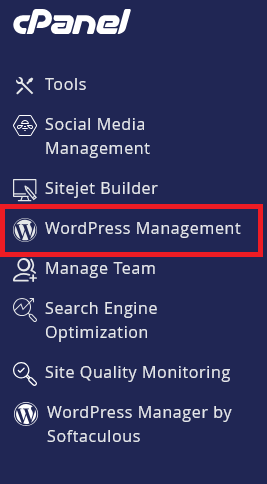
Log in to cPanel and search for WordPress Management:
-
Click on WordPress Management to open the dashboard:
-
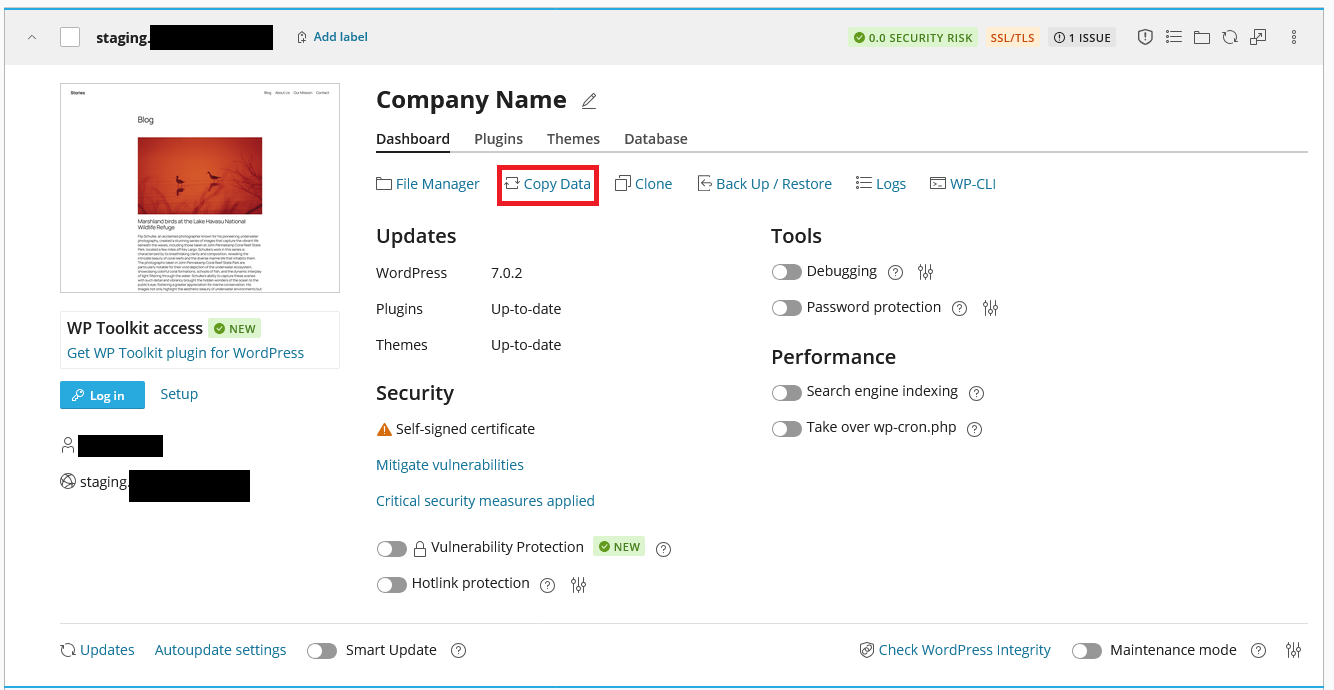
Find your WordPress site in the list you wish to copy
-
Click on the Copy Data option for that site
-
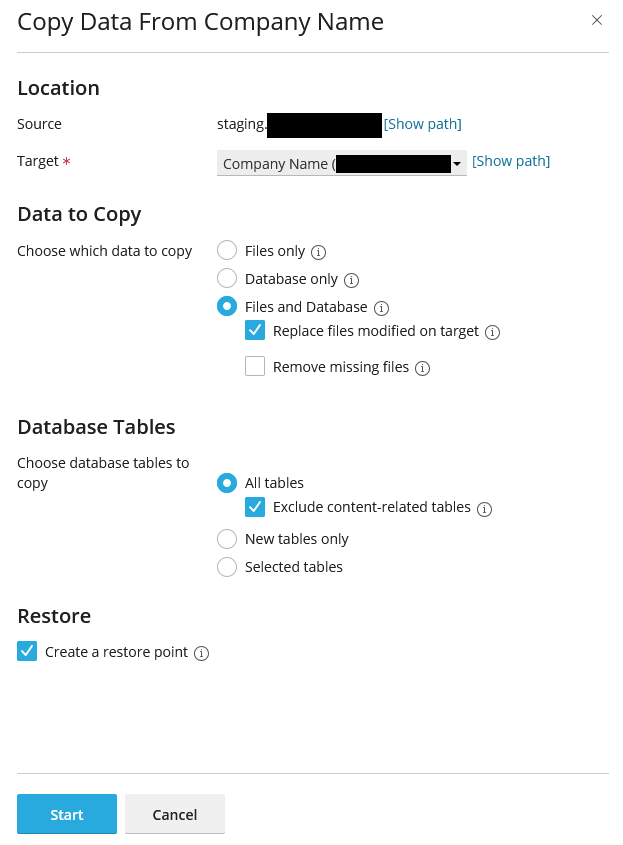
Select a target and the specific data you want to copy
-
Click the
Startbutton to begin the copying process. -
Wait for the copying process to complete. Upon completion, the selected data will be copied into the target.
WordPress Hosting Made Easy
Fast NVMe Storage • Free Migrations • 24/7 Expert Support