
How to Improve WordPress Security
Default WordPress installations are secure; however, there are several steps you can take to further improve security. We highly recommend that you back up your installation before making security changes. While the majority of changes should not affect WordPress’s operation, some plugins or themes may not be compatible.
How to Improve WordPress Security
Section titled “How to Improve WordPress Security”-
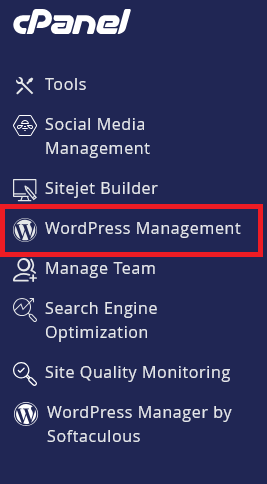
Log in to cPanel and search for WordPress Management:
-
Click on WordPress Management to open the dashboard:
-
Find your WordPress site in the list you wish to make more secure
-
Click
Critical security measures appliedwhich will bring a popup with several security improvements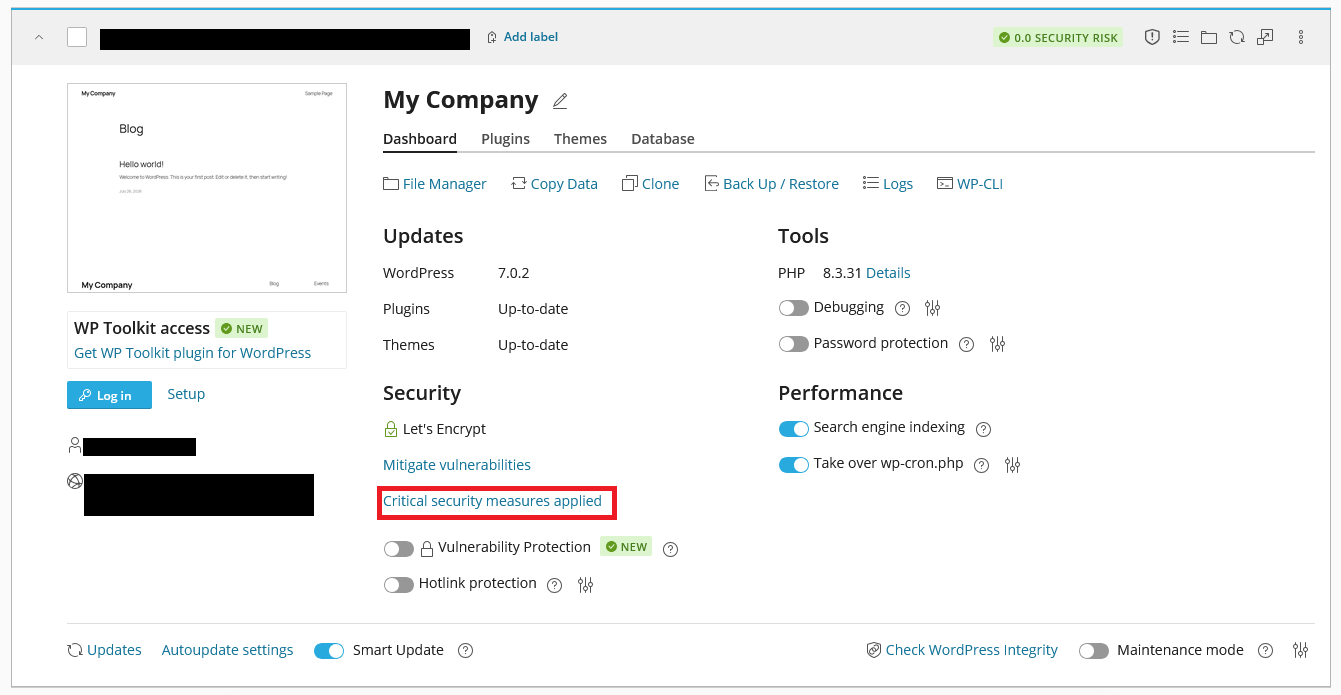
-
Review and check the security measures you want to apply
-
Click
Securebutton to apply the selected security measures
Current Available Security Measures
Section titled “Current Available Security Measures”- Block access to xmlrpc.php (can be reverted)
- Forbid execution of PHP scripts in the wp-includes directory (can be reverted)
- Forbid execution of PHP scripts in the wp-content/uploads directory (can be reverted)
- Disable scripts concatenation for WordPress admin panel (can be reverted)
- Turn off pingbacks (can be reverted)
- Disable file editing in WordPress Dashboard (can be reverted)
- Enable bot protection (can be reverted)
- Block access to potentially sensitive files (can be reverted)
- Block access to .htaccess and .htpasswd (can be reverted)
- Block author scans (can be reverted)
- Restrict access to files and directories
- Configure security keys
- Block directory browsing (can be reverted)
- Block access to wp-config.php (can be reverted)
- Disable PHP execution in cache directories (can be reverted)
- Change default database table prefix
- Block access to sensitive files (can be reverted)
- Change default administrator’s username
WordPress Hosting Made Easy
Fast NVMe Storage • Free Migrations • 24/7 Expert Support