
How do I pay my invoice with cryptocurrency?
Hawk Host currently has two cryptocurrency payment processors. Each has its own set of coins it accepts, regional restrictions, and level of verification.
Transfi
Section titled “Transfi”Accepted Coins
Section titled “Accepted Coins”- Bitcoin (BTC) — Bitcoin
- Ethereum (ETH) — Ethereum
- Polygon Ecosystem Token (POL) — Polygon
- Solana (SOL) — Solana
- Tether (USDT) — Arbitrum
- Tether (USDT) — Binance Smart Chain
- Tether (USDT) — Celo
- Tether (USDT) — Ethereum
- Tether (USDT) — Polygon
- Tether (USDT) — Solana
- Tether (USDT) — Ton
- Tether (USDT) — Tron
- USD Coin (USDC) — Arbitrum
- USD Coin (USDC) — Base
- USD Coin (USDC) — Binance Smart Chain
- USD Coin (USDC) — Celo
- USD Coin (USDC) — Ethereum
- USD Coin (USDC) — Polygon
- USD Coin (USDC) — Ronin
- USD Coin (USDC) — Solana
Regional Restrictions
Section titled “Regional Restrictions”- You can find available regions on the Transfi website
Verification Level
Section titled “Verification Level”- No verification typically required unless their automated systems detect unusual activity
How To Pay With Transfi
Section titled “How To Pay With Transfi”-
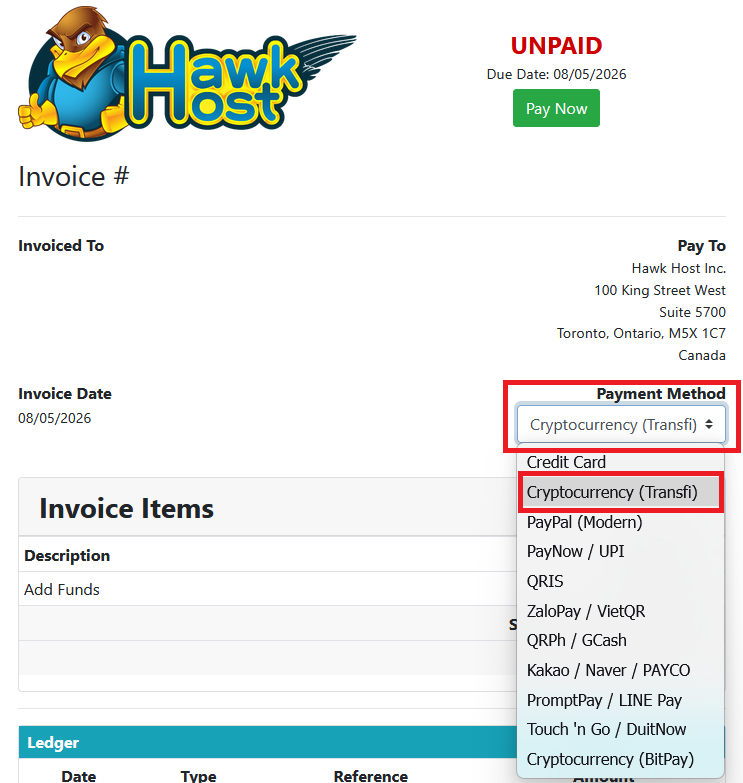
Open your invoice in the client area or from your new order checkout. In the payment method dropdown, select Transfi (Cryptocurrency).
-
Click the green Pay Now button.
-
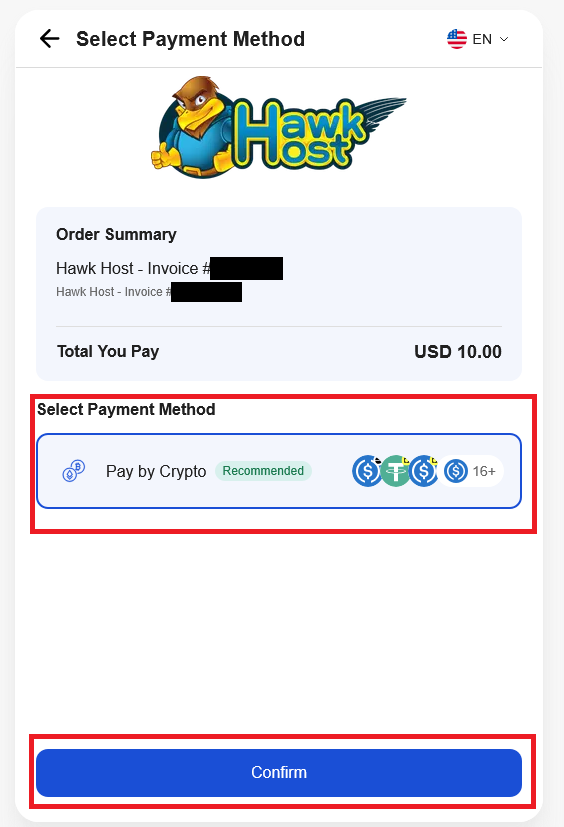
You will be redirected to Transfi’s website, where you will select Pay by Crypto and click Confirm.
-
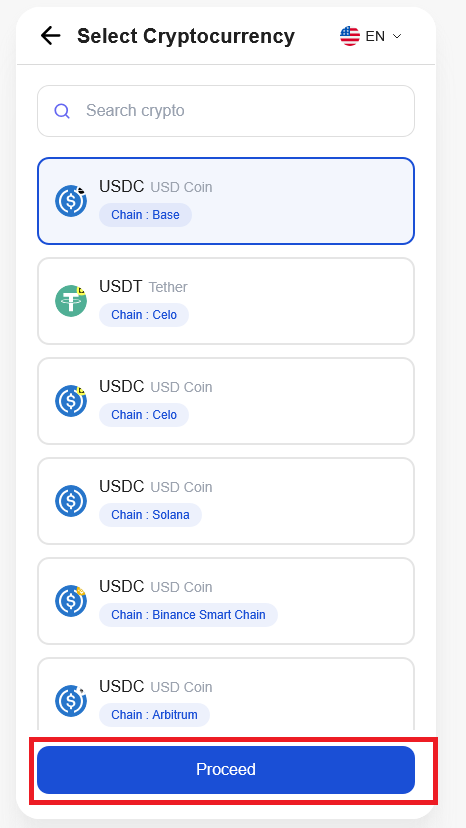
You will then be presented with a list of available cryptocurrencies to pay with. Either search for the coin you want to pay with or select it from the list. Once selected, click Proceed.
-
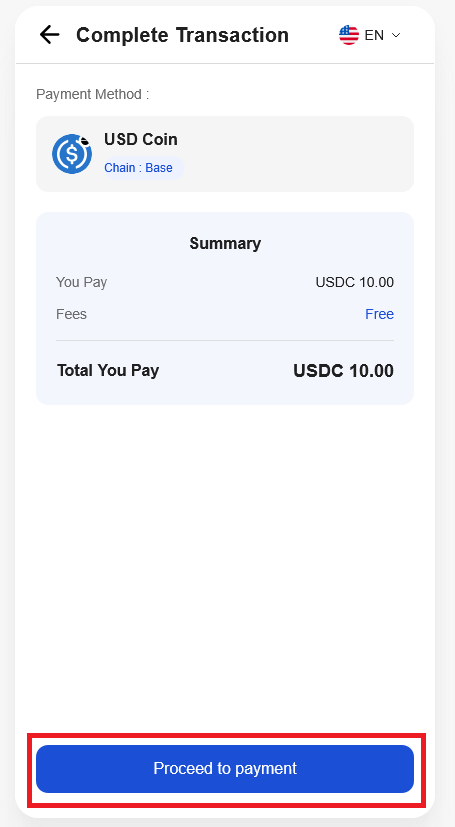
You will be presented with a summary of the amount owing in your selected cryptocurrency. Review the details and click Proceed to payment to proceed.
-
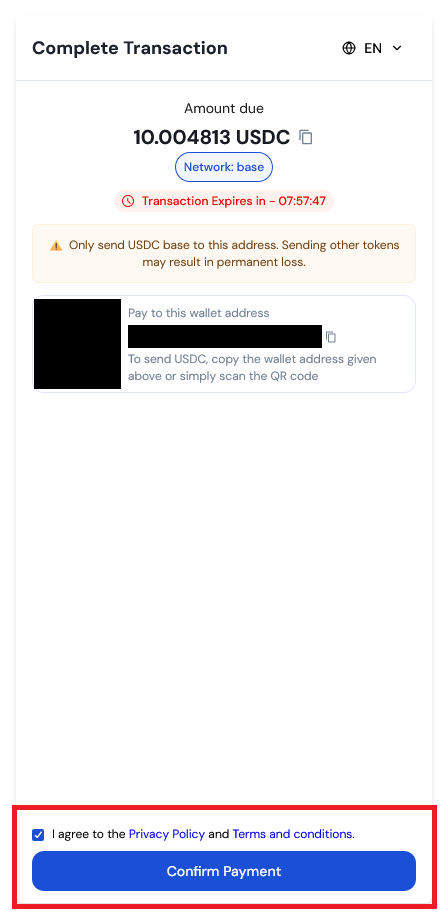
You will then be presented with the wallet address and QR code to scan to pay. Once you’ve made payment agree to the privacy policy and terms of service, then click Confirm Payment.
-
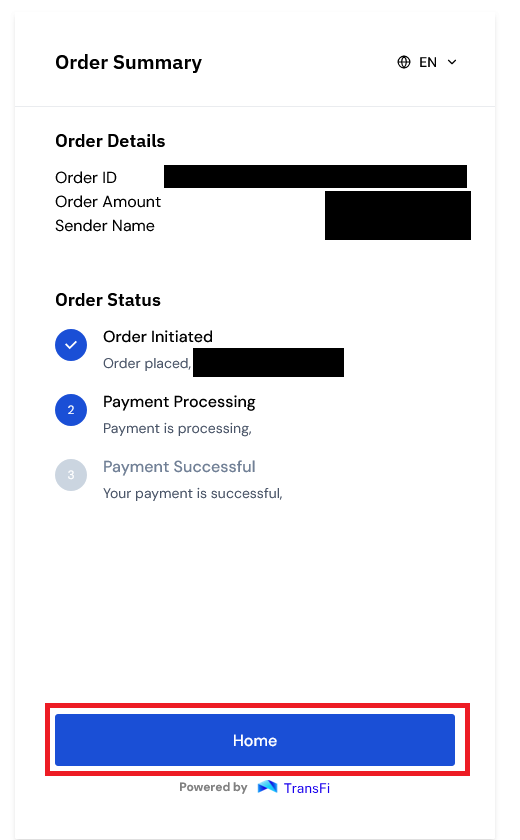
You will then be redirected to the Order Summary where your Transfi order ID and amount will be displayed. You can click the Home button to be redirected back to Hawk Host
-
Cryptocurrency payments typically take 30-60 minutes to process. You will receive an email notification once your payment has been confirmed. Until then your invoice will remain unpaid.
BitPay
Section titled “BitPay”Accepted Coins
Section titled “Accepted Coins”- ApeCoin (APE)
- Bitcoin (BTC)
- Bitcoin Cash (BCH)
- Binance USD (BUSD)
- Dai (DAI)
- Dogecoin (DOGE)
- Ethereum (ETH)
- EURC (EURC)
- Gemini Dollar (GUSD)
- Litecoin (LTC)
- Pax Dollar (USDP)
- PayPal USD (PYUSD)
- Polygon (POL)
- Shiba Inu (SHIB)
- Tether USD (USDT)
- USDC (USDC)
- Wrapped BTC (WBTC)
- XRP (XRP)
Regional Restrictions
Section titled “Regional Restrictions”- You can find available regions on the BitPay website
Verification Level
Section titled “Verification Level”- BitPay Account Required
How To Pay With BitPay
Section titled “How To Pay With BitPay”-
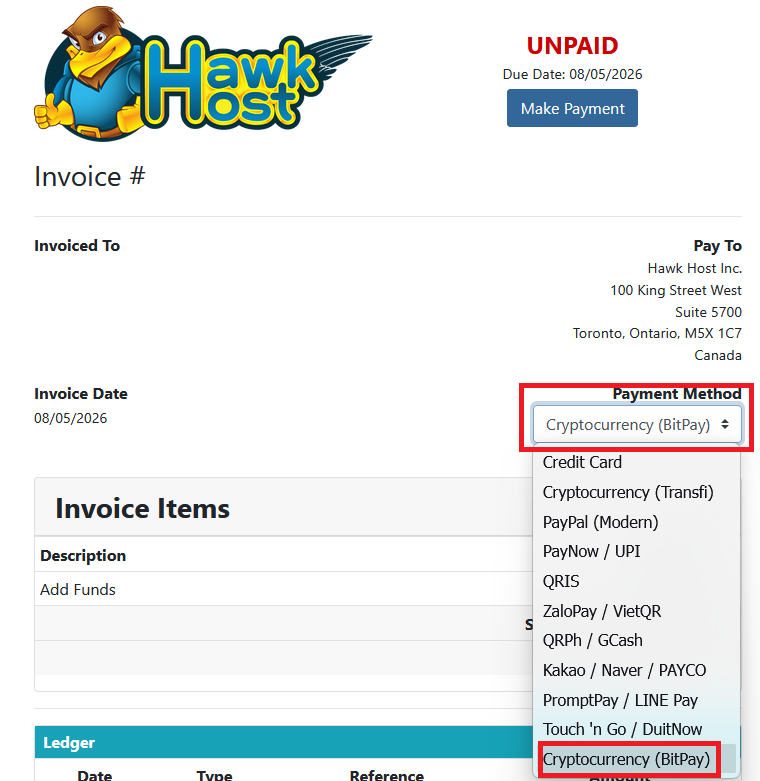
Open your invoice in the client area or from your new order checkout. In the payment method dropdown, select BitPay (Cryptocurrency).
-
Click the blue Make Payment button.
-
You will be redirected or presented with a popup to BitPay’s website, where you will need to login to your BitPay account
-
You will walk through BitPay’s steps to make payment using their system
-
Cryptocurrency payments typically take 30-60 minutes to process. You will receive an email notification once your payment has been confirmed. Until then your invoice will remain unpaid.
Troubleshooting
Section titled “Troubleshooting”If you experience any issues, email billing@hawkhost.com or submit a ticket with a screenshot of the error and a description of the problem. If you’ve made payment but it hasn’t been reflected after several hours, please contact us email billing@hawkhost.com or submit a ticket.