
How to Backup and Restore WordPress
The WordPress Management interface allows you to easily back up and restore your WordPress installation. The backup feature can be used to quickly access backups while making changes. Hawk Host highly recommends that you create off-site backups and do not rely entirely on backups stored by the WordPress Management system.
Creating a Backup
Section titled “Creating a Backup”-
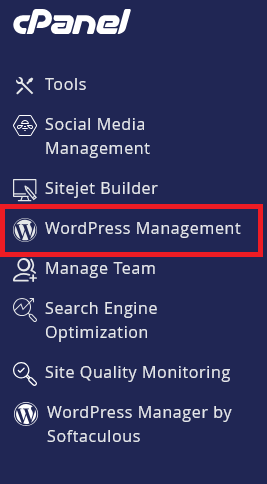
Log in to cPanel and search for WordPress Management:
-
Click on WordPress Management to open the dashboard:
-
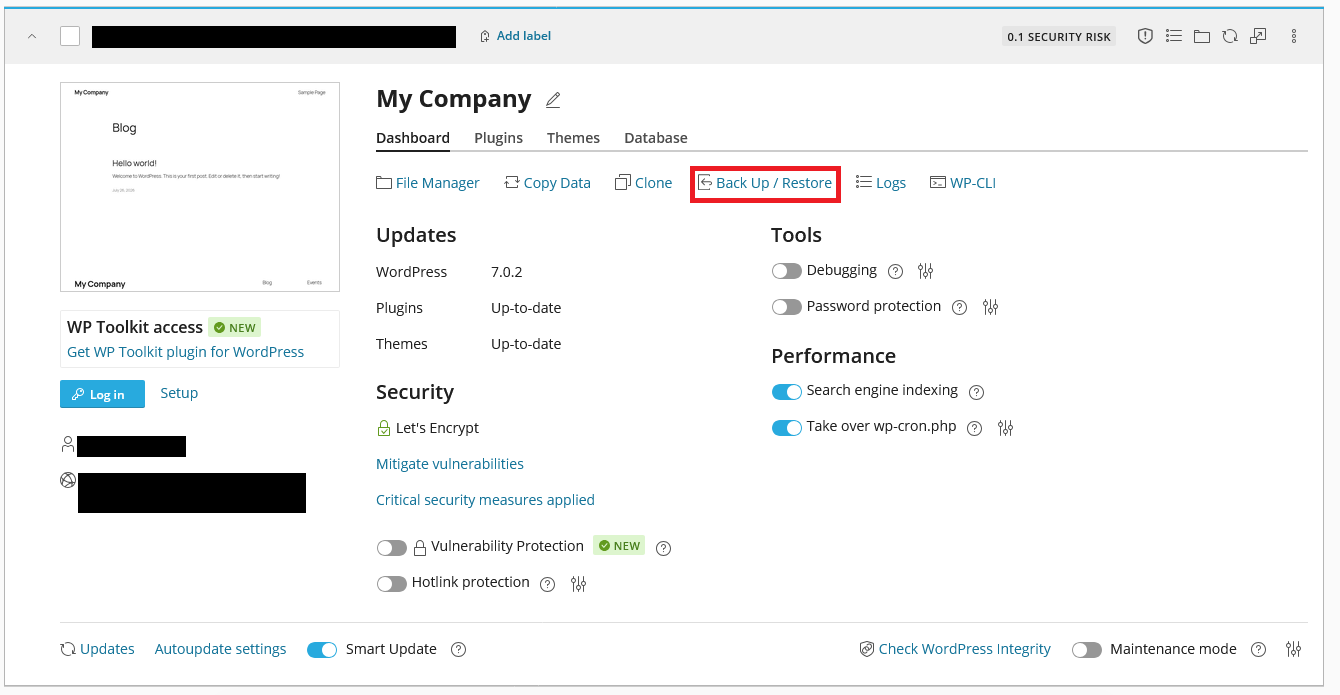
Find your WordPress site in the list
-
Click on the Back Up / Restore tab
-
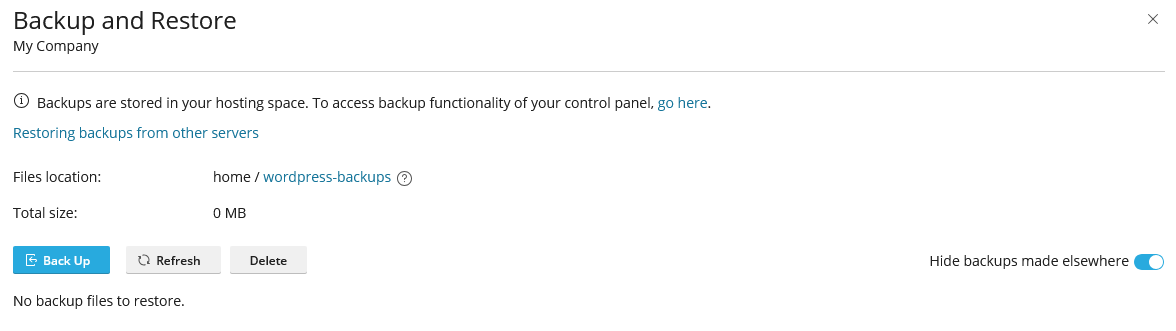
Click on the Back Up button
-
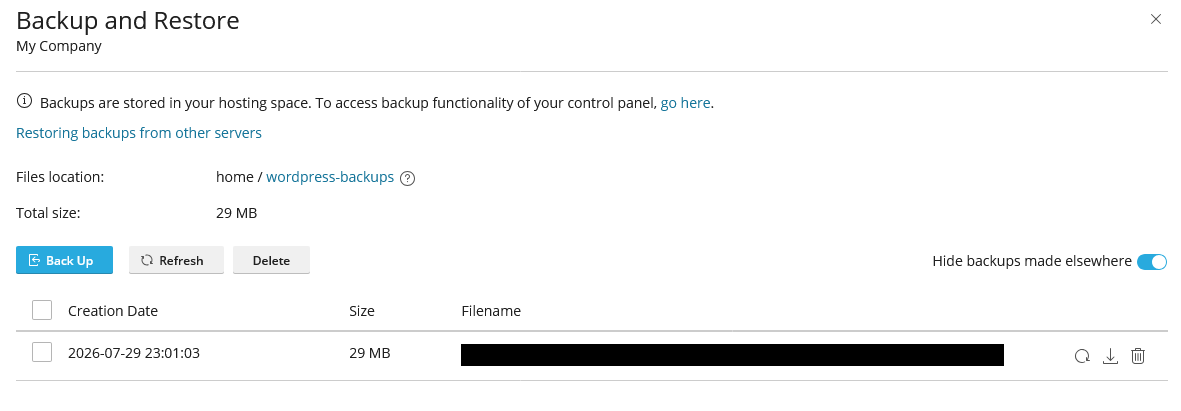
Once the backup is complete, you will see it in your backup list
Restoring a Backup
Section titled “Restoring a Backup”-
Log in to cPanel and search for WordPress Management:
-
Click on WordPress Management to open the dashboard:
-
Find your WordPress site in the list
-
Click on the Back Up / Restore tab
-
Click on the Restore button next to the backup you want to restore
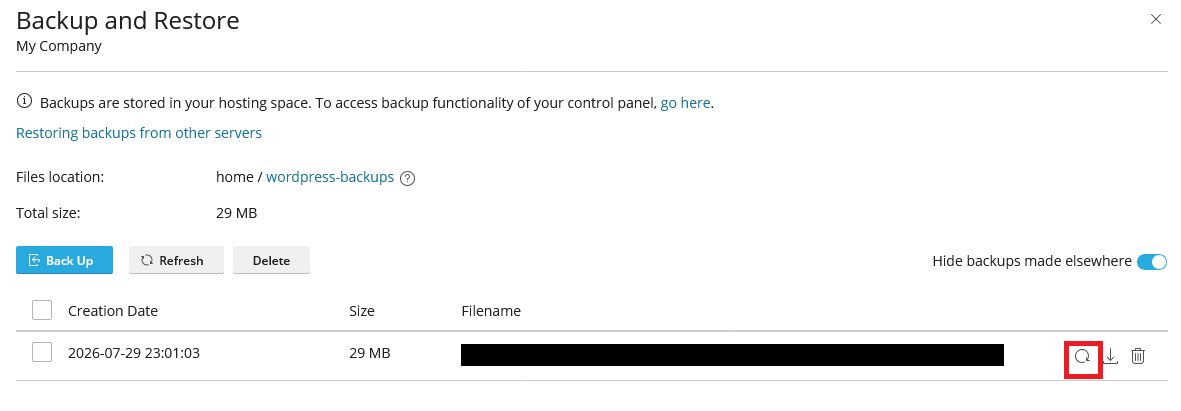
-
Confirm the restore
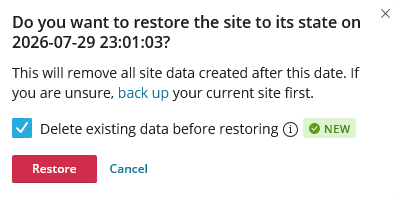
-
Wait for the restore to complete
Downloading a Backup
Section titled “Downloading a Backup”-
Log in to cPanel and search for WordPress Management:
-
Click on WordPress Management to open the dashboard:
-
Find your WordPress site in the list
-
Click on the Back Up / Restore tab
-
Click on the Download button next to the backup you want to download
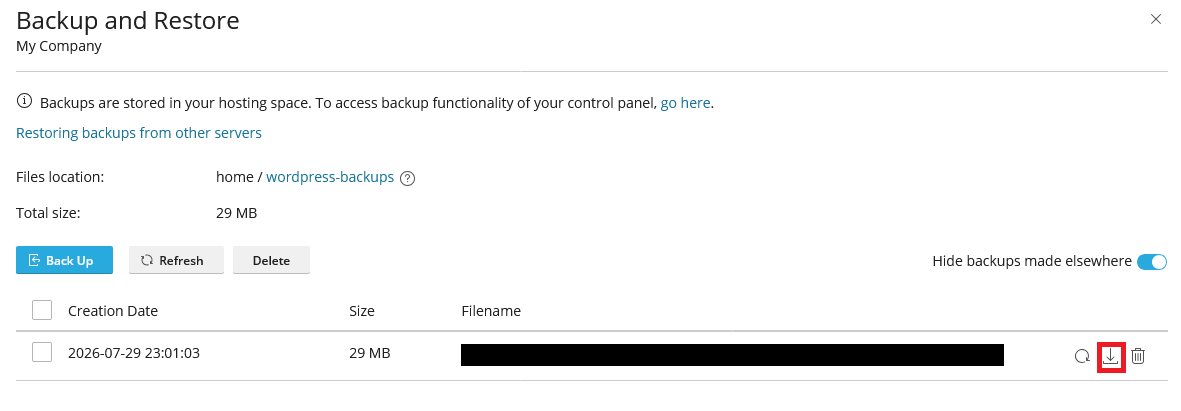
-
You will be taken directly to the backup location in the cPanel File Manager. You can also access backups directly in your home directory at
wordpress-backups
Deleting a Backup
Section titled “Deleting a Backup”-
Log in to cPanel and search for WordPress Management:
-
Click on WordPress Management to open the dashboard:
-
Find your WordPress site in the list
-
Click on the Back Up / Restore tab
-
Click on the Delete button next to the backup you want to delete
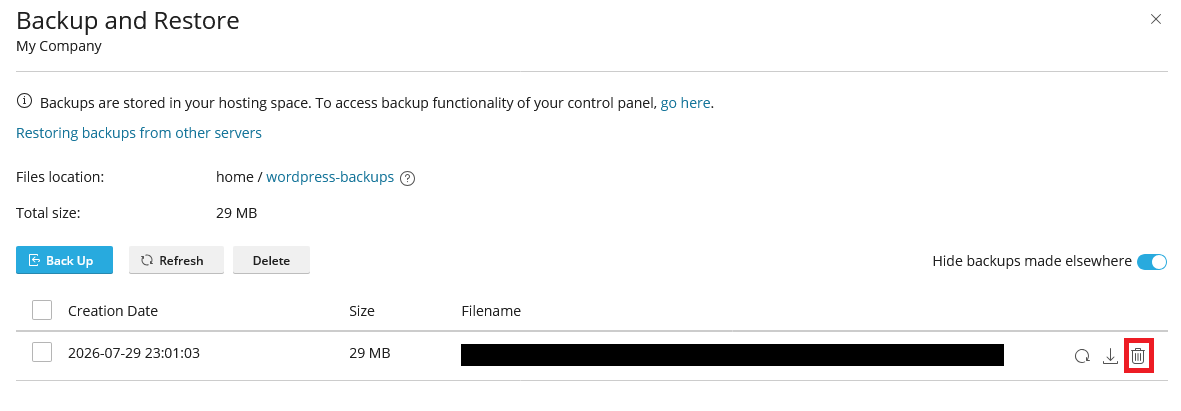
-
Confirm the deletion by clicking the
Deletebutton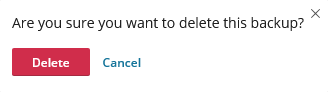
WordPress Hosting Made Easy
Fast NVMe Storage • Free Migrations • 24/7 Expert Support